Before you begin
To gain access to the System Platform Web Console from a laptop that is connected to the services port, enable IP forwarding. See Enabling IP forwarding to access System Platform through the services port.
About this task
 Important
 You cannot gain access to Console Domain until the system finishes the first boot process.
You can access the System Platform Web Console from a Web browser on your laptop or another computer connected to the same network as the System Platform server.
Procedure
- Open a compatible Internet browser on your computer.
Currently, System Platform supports Internet Explorer 7, and Firefox 3.6 and later.
- Type the URL: https://ipaddress, where ipaddress is the IP address of the Console Domain that you configured during installation of System Platform.
- Enter a valid user ID.
- Click Continue.
- Enter a valid password.
- Click Log On.
The system displays the License Terms page when you log in for the first time.
- Click I Accept to accept the end-user license agreement.
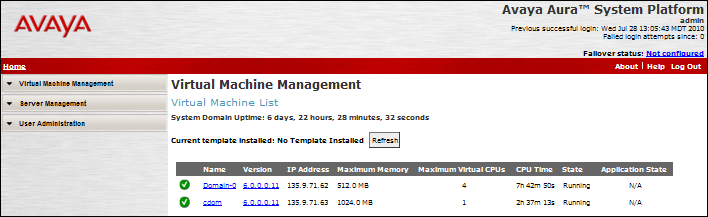
The system displays the Virtual Machine List page in the System Platform Web Console.