 |
Initial Administration
|
This section includes steps for the following processes as part of
a new system installation:
Stop Messaging
- If required, open a browser on your laptop (for example, Internet
Explorer or Netscape), and enter the URL http://192.11.13.6
to log in to the Communication Manager System Management Interface using craft.
The system displays the Communication Manager System Management Interface screen.
- On the Administration menu, click Messaging.
The system displays the Messaging Web page.
- Under Utilities in the left navigation pane, select Stop Messaging.
- Click the Stop button.
The Stop Messaging Software screen displays status as messaging begins stopping. When Messaging has stopped, the screen displays the message, "Stop of voice system completed" at the top of the screen.
Administering Messaging
Installation worksheets or customer input might be required for many
of the software settings.
Administering the Switch Link
To administer the switch link:
- On the left navigation menu, under Switch Link Administration, select Switch Link Admin.
The Switch Link Administration screen appears.
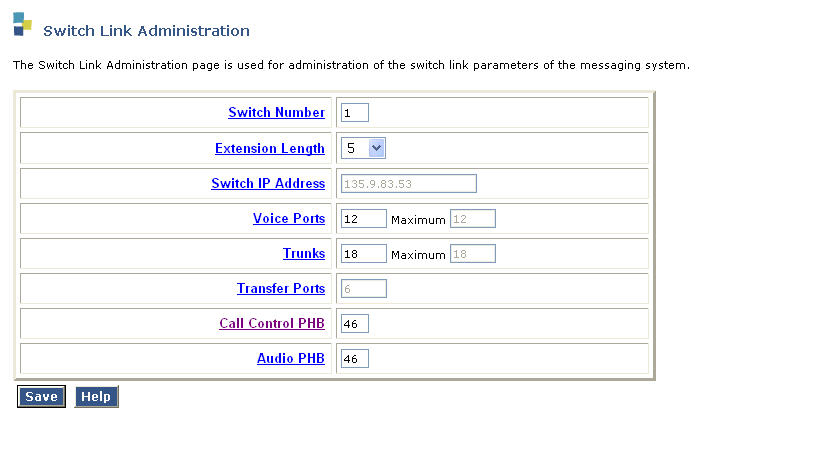
- Enter 1 in the Switch Number field.
- Select an extension length in the Extension Length field.
- Enter the IP address of the Communication Manager server in the Switch IP Address field.
- Enter the number of voice ports and trunks CM Messaging uses for mailbox connections to the
Communication Manager server. You can use the following table to determine the number
of ports required for the anticipated number of mailboxes to administer on CMM.
Number of Ports to Mailboxes Mapping
| Users |
Maximum Users |
Call Answer Ports |
Transfer Ports |
Total Ports |
| 1 to 5 users |
5 |
2 |
1 |
3 |
| 6 to 10 users |
10 |
2 |
1 |
3 |
| 11 to 25 users |
25 |
3 |
2 |
5 |
| 26 to 50 users |
50 |
4 |
2 |
6 |
| 51 to 100 users |
100 |
5 |
3 |
8 |
| 101 to 250 users |
250 |
8 |
4 |
12 |
| 25 to 500 users |
500 |
13 |
7 |
20 |
| 501 to 1000 users |
1000 |
22 |
11 |
33 |
| 1001 to 2000 users |
2000 |
34 |
17 |
51 |
| 2001 to 3000 users |
3000 |
48 |
24 |
72 |
| 3001 to 4000 users |
4000 |
62 |
31 |
93 |
| 4001 to 5000 users |
5000 |
80 |
40 |
120 |
- Enter a value for Call Control PHB and Audio PHB. The value you enter for both the fields sets the quality of service level for call control messages and audio streams on networks that support this feature. The value for both the fields must be in the range 0 to 63. The value must match the corresponding number configured for the network region used by the messaging signalling group on the switch.
- Click the Save button. The system calculates the number transfer ports and displays them in the Transfer Ports field.
NOTE: The number of H.323 trunks set on the Communication Manager server must accommodate the sum of voice ports and transfer ports you administer on the Switch Link screen. This number of H.323 trunks for messaging is in addition to H.323 trunks the Communication Manager server requires for other functions such as IP telephone connections, faxes, and other data connections throughout the network. The number of H.323 trunks on the Communication Manager server are listed in the Maximum Number of H.323 Trunks field, which is available on the System Parameters Customer Options SAT screen.
Starting Messaging
To start messaging:
- On the left navigation pane, under Utilities, click Start Messaging. The Start Messaging Software screen appears, with the phrase Start Voice System Info: Starting at the top. The screen refreshes periodically while messaging is starting. When Messaging has completed its startup, the phrase Start Voice System Info: Started appears at the top of the screen ,and the message Voice Messaging is now completely up appears at the bottom.
Setting CM Messaging Server parameters
To set parameters for the CM Messaging Server:
- On the left navigation pane under Server Administration, select Messaging Server
Admin. The system displays the Edit Messaging Server screen.
- Enter the name of the voice mail system in the Server Name field. This name must match the name in the Host Name field entered in the Set Identities Screen.
- Enter a password for other messaging servers to use to access this messaging server in the Password field.This password is provided by the customer.
- Enter the starting and ending extensions that are assigned to this call center in the Start Ext. and End Ext. fields of the ADDRESS RANGES table.
- Verify that the following fields are set as shown:
| Field |
Setting |
| IP address |
The IP address of the CMM server |
| Server Type |
tcpip |
| Voiced Name? |
n |
| Extension Length |
The number of digits that are used in the dial plan for this site. |
| Voice ID |
0 |
| Default Community |
1 |
- Leave the defaults in all other fields.
- Click Save. The system displays the message, Server information modified successfully.
Setting system-wide messaging parameters
To set system-wide parameters for messaging:
- On the left-side navigation pane under Messaging Administration, select System
Administration.
The Administer System Attributes and Features screen appears.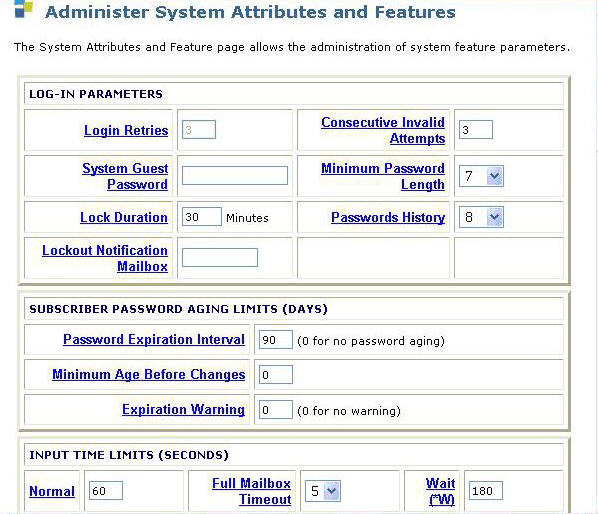
- In the Lock Duration field, enter the length of time a mailbox remains locked after the administered number of failed login attempts.
- In the Consecutive Invalid Attempts field, enter the number of login attempts allowed
before a mailbox is locked.
- In the Minimum Password length field, enter the minimum number of digits that subscriber
passwords must contain.
- In the Passwords History field, enter the number of old passwords that the system saves to
check against old password reuse by a subscriber.
- In the Passwords Expiration Interval field, enter the number of days a subscriber password
is valid, after which the system requires the subscriber to change the password.
- Leave defaults in the remaining fields.
- Click the Save button.
Adding test subscribers for messaging
Note: For each test subscriber, you must administer telephones on the Communication Manager server (see Creating stations and assigning coverage paths section in the Avaya Communication Manager Messaging Installation and Initial Configuration guide). The following procedure then creates a mailbox associated with each subscriber’s telephone.
Creating two subscribers to perform the initial testing of your messaging software
To create a subscriber of the messaging server, perform the following steps:
- On the left navigation pane under Messaging Administration, select Subscriber
Management. The Manage Subscribers screen appears.
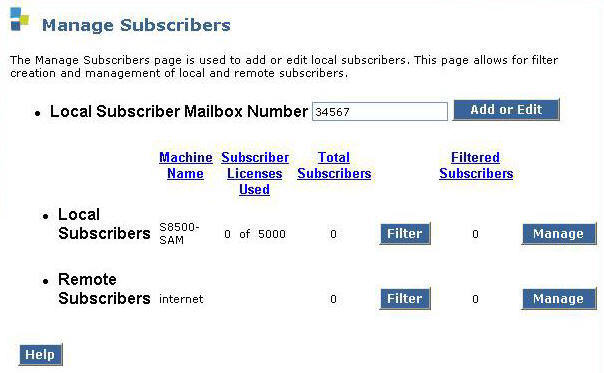
- In the Local Subscriber Mailbox Number field, enter the extension number of the first test
subscriber.
- Click the Add or Edit button. The Add Local Subscriber screen appears.
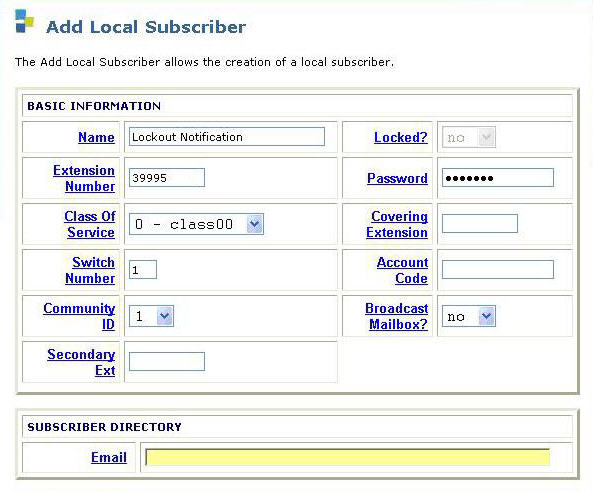
- In the Name field, enter the name of the first test subscriber.
- In the Password field, enter the password for the subscriber’s mailbox.
- Ensure that the Switch Number field displays the number you administered in the Switch
Number field on the Switch Link Administration screen.
- Click Save.
- Repeat steps 2 through 7 for the second test subscriber mailbox.
Top of page
|
|
 |
|
|
|






