

|
|
|
Every S8300 media server and local survivable processor requires a current and correct version of a license file and an Avaya authentication file in order to provide the expected call-processing service.
The license file specifies the features and services that are available on the S8300 media server, such as the number of ports purchased. The license file contains a software version number, hardware serial number, expiration date, and feature mask. The license file is reinstalled to add or remove call-processing features. New license files may be required when upgrade software is installed.
The Avaya authentication file contains the logins and passwords to access the S8300 media server. This file is updated regularly by Avaya services personnel, if the customer has a maintenance contract. A valid authentication file must be present on the S8300 media server, or all access to MultiVantage software from any login is blocked.
A new license file and the Avaya authentication file may be installed independently of each other or any other server upgrades.
The license file of the S8300 as a local survivable processor must have a feature set that is equal to or greater than that of the S8700 media server that acts as primary controller. This is necessary so that if control passes to the LSP, it can allow the same level of call processing as that of the S8700.
Additionally, the S8300 as a local survivable processor must have a version of MultiVantage software that is identical to that of the S8700.
Both the license and MultiVantage software needs of the S8300 as local survivable processor should be identified in your planning documentation.
Complete and Download the License and Authentication Files to Your Laptop
Begin _____________________
Run the ART Tool for the INADS IP Address
Begin _____________________
The ART tool is a software tool that generates an IP address for a customer's INADS alarming modem. This IP address is required for configuring the S8300's modem for alarming.
Note: You must generate a license and authentication file before you use the ART tool. Also, the ART process is available only to Avaya personnel. Non-Avaya personnel must contact their service support or customer care center for INADS addresses, if required.
Download the Latest MultiVantage Update Software
Begin _____________________
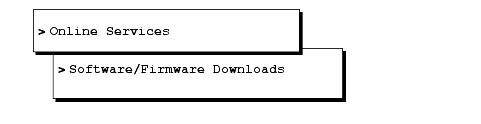
To install the latest update software for the MultiVantage software that resides on the S8300, you first download the software file to your laptop. Use the following steps:
A File Download window appears.
|
|
|