

|
|
|
The Visual Traceroute feature renders the output of the traceroute command in a graphical form. When you select show traceroute from the show commands window, the contents of the information window appears.
By default, the VIPS check box is selected and the Continuous box is cleared. A Visual Traceroute is performed when you enter an IP address or a host name in the Host field and click Go. If you clear the VIPS check box or select the Continuous check box, or both, the output is be in text mode.
Select the VIPS checkbox to initiate a traceroute from each USTAT. If you do not select the VIPS check box, only a single traceroute is initiated.
Select the Continuous check box to force the system to do the traceroute until you click the stop button to terminate the traceroute.The stop button is located to the left of the VIPS check box.
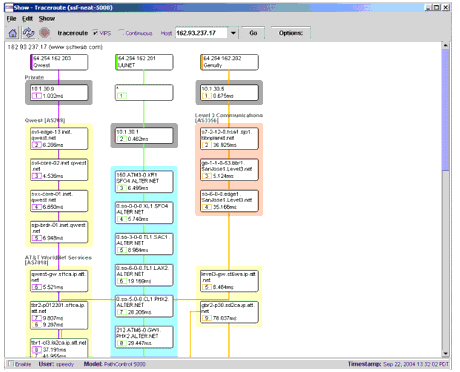
In the example shown in Figure 17, three USTATS were configured. The Visual Traceroute was sourced from three VIPS and directed toward the host address in the Host field. The first three elements in the figure show the starting point for the traceroute and the provider link or path that the traceroute will take. Notice that these paths are color coded throughout the traceroute. In the example, the first hop down the Qwest path is labeled “Private” because the hop has a private address, which happens to be an internal host. The next four elements are grouped together by the surrounding yellow box because these elements lie within the same AS. The number in the small rectangle in each node represents the hop count to reach that node. Next to the hop count is the RTT in milliseconds from the USTAT to that node. Items that are marked with an asterisk(*) indicate that no response was received from that node. This typically occurs with firewalls which are usually configured not to respond to such requests.
Figure 17: Visual Traceroute example
|
|
|