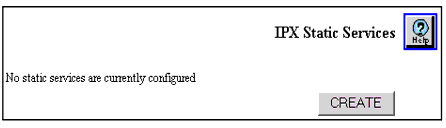
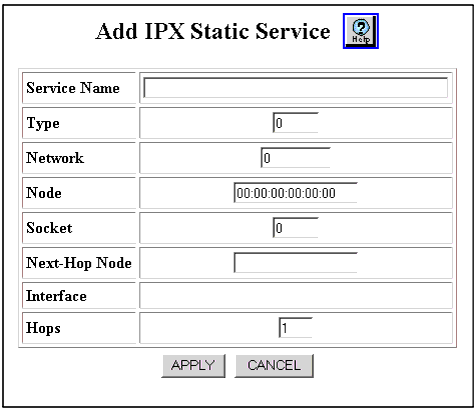
Table 16-5. IPX Static Service Web Page Parameters
| Parameter |
Allows you to... |
| Service Name |
Enter the IPX Static Service name. For example, FS_ENG01. Use SLIST (NetWare 3.x) or NLIST (NetWare 4.x) to list your current server names and types from your NetWare server. You may want to explicitly add a service so that clients always use the services of a particular server. |
| Type |
Enter the service type (in hex) that identifies the type of IPX static service the server provides. Well-known service types include:
- Unknown (0)
- Print Queue (3)
- File Server (4)
- Job Server (5)
- Print Server (7)
- Archive Server (9)
- Remote Bridge Server (24)
- Advertising Print Server (47)
|
| Network |
Enter the IPX Static Service network number (in Hex). |
| Node |
Enter the IPX Static Service node address (in hex). The format of the node value is aa:bb:cc:dd:ee:ff. |
| Socket |
Enter the number (in hex) associated with a running process on the end node (for example, RIP, NLSP). |
| Next-Hop Node |
Enter the MAC address of the next destination through which the service is reached. The format of the node value is aa:bb:cc:dd:ee:ff. |
| Interface |
Enter the interface that corresponds to the next-hop node. |
| Hops |
Enter the number of routers (hops) that the packet must pass through before reaching the network number associated with the service. |
| END |