Web Agent Procedure
To create IPX SAP name filters using the Web Agent:
- In the navigation pane, expand the Routing > IPX > SAP folders, and then click Name Filters.
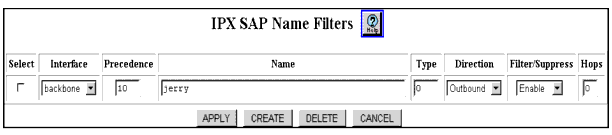
The IPX SAP Name Filters Web page is displayed in the content pane. See Figure�18-2. Only the CREATE button is displayed when no SAP filters are configured.
Figure 18-2. IPX SAP Name Filters Web Page
- Select CREATE to create a new filter. The Add IPX SAP Name Filter Web page is displayed. See Figure�18-3.
Figure 18-3. Add IPX SAP Name Filter Web Page
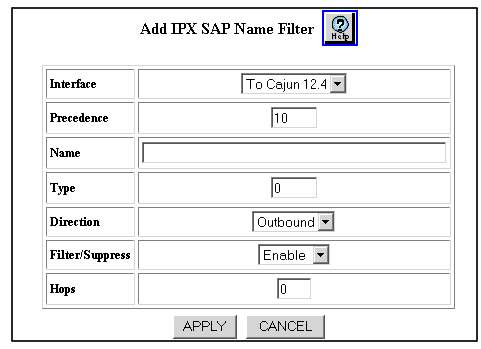
- Configure an IPX SAP name filter. See Table�18-2 for an explanation of the Add IPX SAP Name Filter Web page parameters
- Click APPLY to save your changes, or CANCEL to restore previous settings.
Table 18-2. IPX SAP Name Filter Web Page Parameters
| Parameter |
Allows you to... |
| Interface |
Select the interface to which this filter will be applied to SAP packets sent and/or received on the interface from the pull-down menu. |
| Precedence |
Enter the filter precedence (in order of importance) with 0 equal to most important.
Note: All SAP filters on the same interface must be assigned a unique precedence value.
|
| Name |
Enter a service name. For example, FS_ENG001. A single asterisk may be present as the last character, which will match all remaining characters of a service name. |
| Type |
Enter the service type that identifies the type of service the server provides. Well-known service types include:
- Unknown (0)
- Print Queue (3)
- File Server (4)
- Job Server (5)
- Print Server (7)
- Archive Server (9)
- Remote Bridge Server (24)
- Advertising Print Server (47)
- NetWare Directory Services [NDS] (278)
A value of ffff matches all service type values. |
| Direction |
Select the filter direction from the following
pull-down menu options:
- Inbound - Applies the filter only to SAP packets received on the interface.
- Outbound - Applies the filter only to SAP packets sent on the interface (Default)
- Both - Applies the filter to SAP packets both sent and received on the interface.
|
| Filter/Suppress |
Select to enable or disable whether the services matching Name and Type are filtered (inbound) or suppressed (outbound).
- Filtered - Applies the filter only to SAP packets received (inbound direction) on the interface.
- Suppressed - Applies the filter only to SAP packets sent (outbound direction) on the interface.
Select Enable to filter/suppress traffic. Select Disable to disable the filtering and suppression of traffic.Default value is Enable. |
| Hops |
Specify the number of routers (hops) that the packet must pass through before reaching the service(s) matched by the filter. This entry is used to override the value in the SAP packet. Entering 0 ensures that there is no override in the transmission of data on the network. |
| END |
Example: Suppress Advertising of all Print Servers on Interface Remote
To configure your switch to suppress the advertising of all Print Servers (for example, type 7) on Interface Remote:
- In the navigation pane, expand the Routing > IPX > SAP folders, and then click Name Filters.
The IPX SAP Name Filters Web page is displayed in the content pane. See Figure�18-2.
- Click CREATE to create a new filter. The Add IPX SAP Name Filter Web page is displayed. See Figure�18-3.
- Configure the following parameters:
- Select Remote from the Interface pull-down menu.
- Enter 0 in the Precedence field.
- Enter * (asterisk) in the Name field. The asterisk represents a wildcard that applies to all server names.
- Enter 7 in the Type field.
- Select Outbound from the Direction pull-down menu.
- Select Enable from the Filter/Suppress pull-down menu.
- Enter 0 in the Hops field. This ensures that there is no override in the transmission of data on the network.
- Click APPLY to save your changes, or CANCEL to restore previous settings.
* Note: This filter ensures that all advertising of any known print server on Interface Remote will be suppressed.

