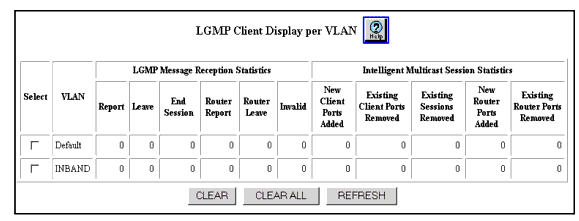
Table 20-12. LGMP Client Display per VLAN Web Page Parameters
| Parameter |
Definition |
| Select |
Select the LGMP client statistics to clear. |
| VLAN |
Displays the VLAN associated with the LGMP client. |
| LGMP Message Reception Statistics |
- Report - Displays the number of LGMP report messages received per VLAN.
- Leave - Displays the number of LGMP leave messages received per VLAN.
- End Session - Displays the number of LGMP end session messages received per VLAN.
- Router Report - Displays the number of LGMP router report messages received per VLAN.
- Router Leave - Displays the number of LGMP router leaves messages received per VLAN.
- Invalid - Displays the number of LGMP messages received with an invalid payload per VLAN.
|
| Intelligent Multicast Session Statistics |
- New Client Ports Added - Displays the number of new clients added by LGMP per VLAN.
- Existing Client Ports Removed - Displays the number of clients removed by LGMP per VLAN.
- Existing Sessions Removed - Displays the number of sessions removed by LGMP per VLAN.
- New Router Ports Added - Displays the number of new routers added by LGMP per VLAN.
- Existing Router Ports Removed - Displays the number of new routers removed by LGMP per VLAN.
|
| END |