Cable Multiple Units
AvayaTM G700 Media Gateways can be mounted in equipment stacks with routers, switches, or other Media Gateways. These elements are all compatible and are installed similarly. Consult Avaya P333T User Guide for installation and cabling information. To link multiple units, each G700 Media Gateway must be equipped with an Avaya X330STK Stacking Module on the rear panel. Then, each unit in the stack is linked to the one above it. Finally, the bottom unit is linked to the top unit. Stacks should always be built from the bottom, and new units should be added at the top. Up to 10 units can be stacked in this way. When deciding where to position the unit, ensure that:
- It is accessible and cables can be connected easily.
- Cabling is away from sources of electrical noise such as radio transmitters, broadcast amplifiers, power lines and fluorescent lighting fixtures.
- Water or moisture cannot enter the case of the unit.
- There is a free flow of air around the unit and the vents in the sides of the case are not blocked.
The two ends of the Octaplane cables incorporate different connectors. Each connector can only be connected to its matching interface.The following cables are used to connect stacked units:
- Short Octaplane cable (Avaya X330SC) - light, ivory-colored cable used to connect adjacent units.
- Long Octaplane and Extra-Long Octaplane cables (Avaya X330LC/X330L-LC) - light, ivory-colored cable used to connect units from two different physical stacks or those separated by more than 12 inches (30 cm).
- Redundant and Long Redundant cables (Avaya X330RC/X330L-RC) - black cable used to connect the top and bottom switches of a stack.
Figure 13. Cabling Multiple Units in a Single Rack
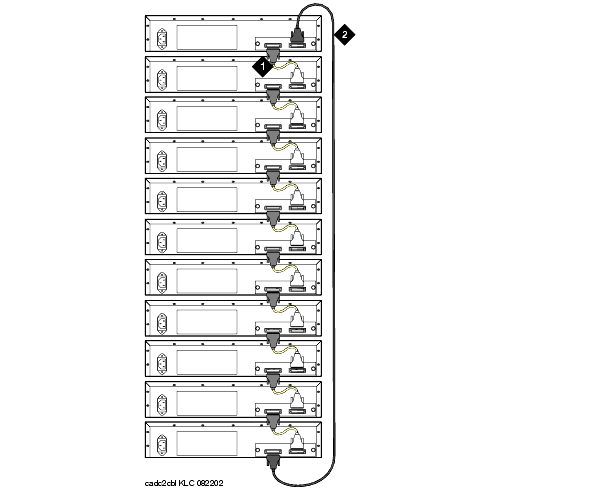
Connect Units within a Single Stack
Begin _____________________
- Connect the light grey connector of the short Avaya X330SC cable (12 in, 30 cm) to the port marked "to upper unit" in the bottom-most stack element.
- Connect the dark grey connector of the same short X330SC cable to the port marked "to the lower unit" in the unit above.
- Repeat until you reach the top element in the stack. Up to ten units can be stacked together.
To implement stack redundancy:
- Use the Redundant Cable to connect the port marked "to lower unit" on the bottom element to the port marked "to upper unit" on the top element of the stack.
End _______________________
If you have elements of a stack in two racks, you must use the Avaya X330LC cable to connect them. You may not link more than 10 units to form a stack, but those units can be mounted in more than one rack.
Link Elements in Multiple Racks
Begin _____________________
- Use the long (6ft, 2 m) Avaya X330LC cable to connect elements in two racks.
- Connect the Avaya X330LC cable (dark grey connector) to the port on first unit of the stack marked "to the lower unit."
- Connect the Avaya X330LC cable (light grey connector) to the port on the last unit in the stack marked "to the upper unit."
To implement stack redundancy:
- Connect the dark grey connector of the black Redundant Cable to the port marked "to lower unit" on the bottom unit of the stack.
- Connect the light grey connector of the black Redundancy Cable to the port marked "to upper unit" on top unit of the stack.
CAUTION: Do not cross-connect two stack elements with two Octaplane (light-colored) cables. If you wish to cross-connect for redundancy, use a black redundancy cable.
End _______________________
Figure 14. Linking Units in Multiple Racks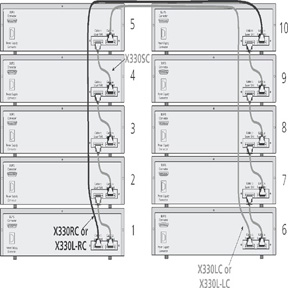
You have now mounted the fully equipped Avaya G700 Media Gateway in the rack, and cabled units together as described in the planning documents. When all the units are mounted, and cabled, you are ready to connect to electrical ground conductors.

