Set Up the TFTP Server on Your Laptop or on a Customer PC
A tar.gz file, which you obtain from a CD-ROM or a website, contains new G700 software. To load this software on a G700 Media Gateway, you must place this tar.gz file either on your laptop or on a PC connected to the customer's LAN. Later, you will log in to the G700 and use its TFTP capability to pull the new software from your laptop or the customer's PC. As a result, either the customer must configure a TFTP server on a PC connected to the customer's LAN or you, the installer, must set up your laptop as a TFTP server and later connect it to the customer's LAN.
Note: A Linux or Unix TFTP server should be used only if the customer already has an existing one. In these cases, you download the tar.gz file to your laptop and give it to the customer for proper placement and execution.
- On the hard drive of your laptop or the customer's PC, create a directory into which you will load the G700 software. It is recommended that you create a directory called C:\tftp.
- Connect to the LAN using a browser on your laptop or the customer's PC and access http://www.avaya.com/support on the internet to copy the following file to the PC/laptop: iptel_avaya_tftp.exe.
- At the Avaya support site, select the following sequence of menu options:
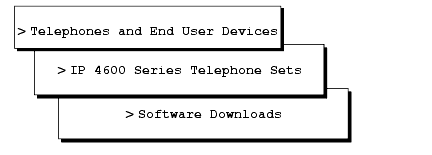
- Select AVAYA 4630 IP Telephone Release 1.6 and TFTP Server or latest version.
- Scroll to bottom of page to find iptel_avaya_tftp.exe.
- Double-click on the program and download it to your laptop or the customer PC that will serve as the TFTP server. You may also wish to download and view or print the file iptel.pdf, which provides instructions on installing the iptel_avaya_tftp.exe for Windows servers.
- Remember where the iptel_avaya_tftp.exe file is installed on your laptop or PC and write it down. By default, the download normally creates a directory C:\Program Files\Walusoft\TFTPSuite that contains the file.
- After copying the iptel_avaya_tftp.exe file to the PC, double-click it to install it, and follow instructions.
- When the file has been installed, go to the directory where the software was installed and open the program tftpserver32.exe.
The TFTP Server window appears. It reflects the IP address of the PC in the upper border, plus port 69.
- Enable the TFTP server as follows:
For NT and Windows 2000 or higher operating systems, set the following:
- Click on System from menu bar and select setup.
The server option window appears.
- Select the Outbound tab, and enter the outbound file path to C:\tftp - Enter this or your alternate tftp location in the Outbound tab.
- Under Options tab, enter 69 in the Use Port field (default).
- Select No Incoming (default). However, if you wish to copy files as a backup prior to performing an upgrade of software, leave this field unchecked.
- Select the Inbound tab, and enter the inbound file path to C:\tftp or your alternate tftp location in the Inbound tab.
- Click OK.
End _______________________

