Download the tar.gz File or G700 Files to Your TFTP Directory �
Note: Your laptop (or the customer's PC) must have WinZip or other file zipping software for this procedure.
Download the tar.gz File from CD-ROM to Your TFTP Directory and Unzip It
Begin _____________________
- Insert the G700 software CD into your laptop or PC CD-ROM drive.
- Use Windows File Explorer or another file management program to access the files on the CD-ROM drive.
- Copy the tar.gz file (G700-11.2-0210.1.tar.gz or similar identifier) to the C:\tftp directory.
- Use winZIP or another zipfile tool to unzip the file. You may need to unzip an additional tar.gz file embedded in the original file. You should continue to unzip tar.gz files until you see listed files with extensions as shown in Firmware File Formats.
All file types for the components of the G700 are unpacked and listed.
End _______________________
Download the Firmware Files from the Web to Your TFTP Directory
Begin _____________________
- Access the avaya.com/support website.
- Use Windows File Explorer or another file management program to access the CD-ROM drive files.
- At the Avaya support site, select the following sequence of menu options:
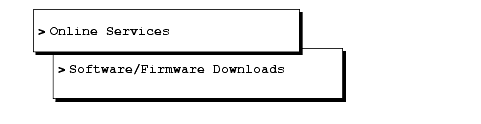
- Scroll down the Software Downloads list on the Web page to Avaya G700 Media Gateway and S8300 Media Server, and double-click Avaya Media Server and Media Gateway Firmware Downloads.
The list of firmware patches appears.
- Locate the file names that matches the load listed in your planning documentation. The file names will approximate those listed in the following table:
Table 9. Firmware File Formats
| Component |
Firmware Version Format |
Example |
| P330 Stack Processor |
viisa<version id> |
viisa3_12_1.exe |
| P330 Stack Processor |
p330<version id> |
p330Tweb.3.8.6.exe |
| G700 Media Gateway |
mgp<version id> |
mgp_3_0.bin |
| VoIP Media Module and Motherboard VoIP |
mm760<version id> |
mm760v3.fdl |
| DCP Media Module |
mm712<version id> |
mm712v2.fdl |
| Analog Port/Trunk Media Module |
mm711<version id> |
mm711v4.fdl |
| E1/T1 Media Module |
mm710<version id> |
mm710v3.fdl |
| BRI Media Module |
mm720<version id> |
mm720v2.fdl |
- Double-click the file name.
A File Download window appears.
- Click on Save this file to disk.
- Save the file to the C:\tftp directory or another directory you created to store the download files for the TFTP server software.
- Use Winzip or another zip file tool to unzip the file if necessary.
End _______________________

