

|
|
|
Once you have transferred the updated S8300 software file (with a .tar extension) to the S8300 Media Server, the software is then available to be installed.
Note: You cannot install the MultiVantage Software in the same way.
Begin _____________________
The S8300 displays the Choose Software screen.
Figure 89. Choose Software Screen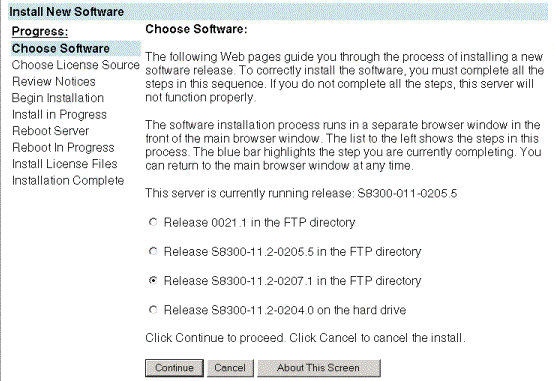
The S8300 displays the Choose License Source screen.
Figure 90. Choose License Source Screen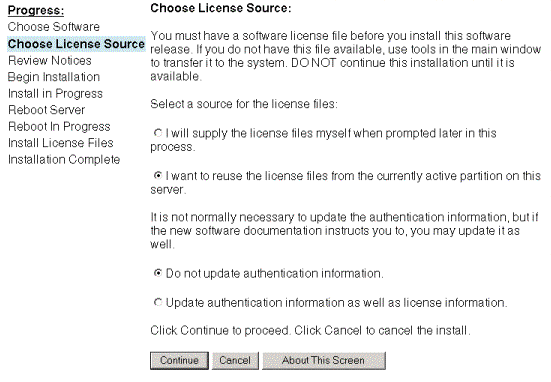
CAUTION: If you did not install the authentication and license files and Run Save Translations (Only If New License or Authentication Files Installed), you must select the following options and follow instructions to select the license and authentication files from the ftp directory. Failure to do so may cause you to be locked out of the S8300 after the next reboot. This may force replacement of the S8300.
The S8300 displays the Begin Installation screen, which summarizes the request you have made.
Figure 91. 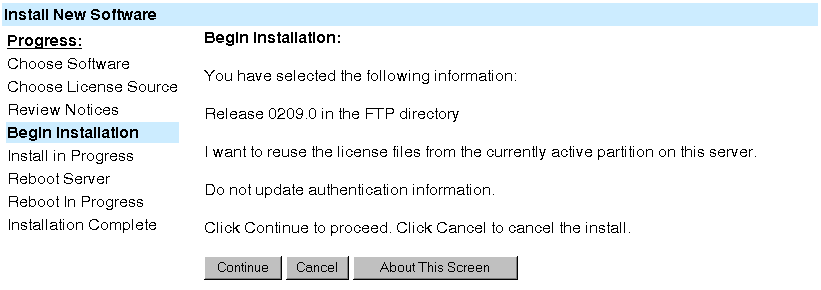
Begin Installation Screen
The S8300 displays the Install in Progress screen.
Figure 92. Install in Progress Screen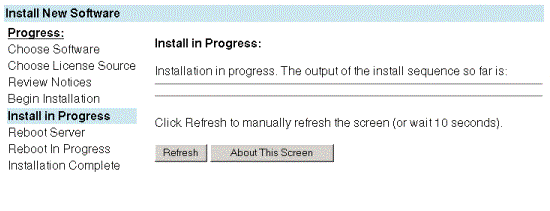
The Install in Progress screen refreshes every 5 seconds or on demand by clicking the Refresh button. The installation will take approximately 10 to 20 minutes. When complete, the S8300 displays the Reboot Server screen.
Figure 93. Reboot Server Window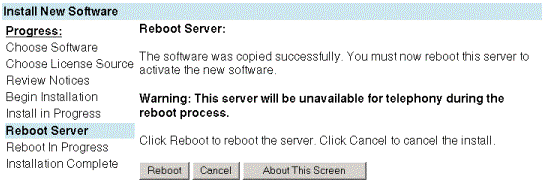
The S8300 displays the Reboot in Progress screen.
Figure 94. 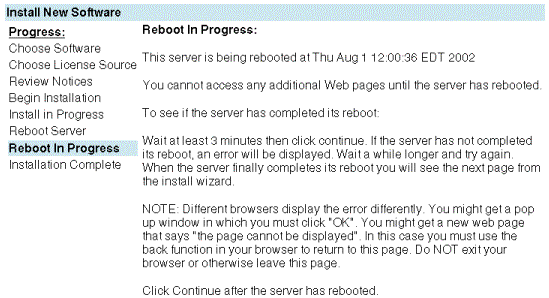
Reboot in Progress Screen
CAUTION: The reboot can take up to 20 minutes. However, the system does not automatically tell you when the reboot is complete. Do not click Continue until you are sure the reboot is complete, otherwise the installation will fail.
The ping will succeed only when the reboot is complete.
Alternatively, you can wait three minutes or more and press the Refresh button to see if the reboot is complete. Monitor the LEDs on the S8300 for progress on the installation. The Services port jack should have one yellow LED on the left that stays lit. The green LED on the right flashes until the reboot is complete.
The S8300 displays the Installation Complete screen.
Figure 95. 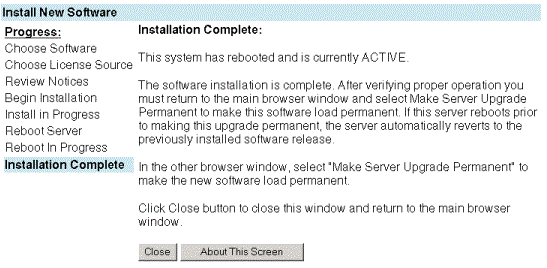
Installation Complete Screen
You will be returned to the main menu where you must make the upgrade permanent.
Begin _____________________
CAUTION: You must make the upgrade of the software permanent so that the software is recognized and kept on the S8300. If you fail to make software permanent, then the next time you reboot, old software will become active.
The S8300 displays the Make Server Upgrade Permanent window.
Figure 96. Make Server Upgrade Permanent Screen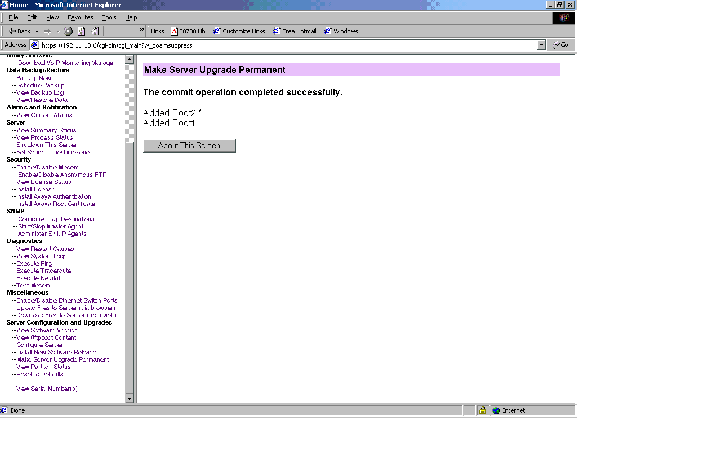
When the new S8300 upgrade software is permanent, the S8300 displays the message: The commit operation completed.
Install MultiVantage Patch Files from Your Laptop
Begin _____________________
The directory path changes to /var/home/ftp.
The S8300 displays a list of files in the FTP directory.
The S8300 displays a list of software files currently installed, if any.
CAUTION: Do not remove any of the files in the list.
Note: Do not use the .tar.gz extension on the back of the file name.
The S8300 goes through a software reset system 4. The S8300 also may display the message /opt/ecs/sbin/drestart 1 4 command failed. Ignore this message. You must wait until the restart/reset has completed before entering additional commands.
The S8300 displays a message that the patch was applied.
|
|
|