

|
|
|
To load new firmware for the G700 Media Gateway and the Media Modules, you will first need to transfer the new firmware files to the G700 Media Gateway using the TFTP server on your laptop or the customer's PC. Consult the Release Letter for the most recent information and instructions for upgraded firmware.
Connect Laptop to the Customer's LAN (If Laptop Has the TFTP Server)
Begin _____________________
If the TFTP server software and the firmware files reside on your laptop, you must connect your laptop to the customer's LAN. This connection requires that a customer LAN port is close to the location of the G700.
Install New Firmware for the P330 Stack Processor (Layer 2 Switching Processor)
Begin _____________________
The P330-1(configure)# prompt appears.
Note: If necessary, open the HyperTerm window, and login to the P330 Stack Processor command line interface.
where
<file> is the image file with format and vintage number similar to viisa3_8_2.exe,
<ew_file> is an embedded web application file with format similar to p330Tweb.3.8.6.exe,
<tftp_server_IP_address> is the IP address of the laptop or PC with the TFTP server, and
<Module#> is the number, 1 through 10, of the media gateway in the stack. If there is only one G700 Media Gateway, the number is 1.
The P330 Stack Processor resets. The LEDs flash and self-tests run.
Install New Firmware Files to the G700 Media Gateway Processor
Begin _____________________
to transfer the mgp image from the tftp server to the G700, where
<bank> is the bank that is not Active Now.
<filename> will begin with mgp and will be similar to a name like mgp_230_0.bin. <tftp_server_IP_address> is the IP address of the laptop or customer PC. See the following example:
copy tftp mgp-image a mgp_230_0.bin 195.123.49.54.
The screen will show the progress.
Figure 104. Configuration List for G700 Media Gateway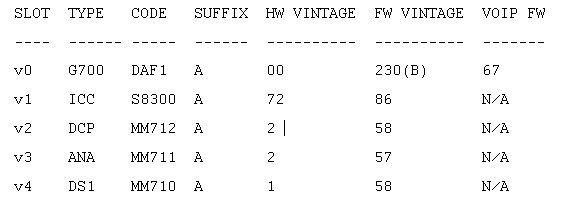
A system prompt asks to confirm the reset.
The G700 Media Gateway processor will reset. The LEDs on the G700 Media Gateway and the Media Modules will flash. These elements will each conduct a series of self-tests. When the LEDs on the Media Modules are extinguished and the active status LEDs on the G700 Media Gateway are on, the reset is complete.
Install New Firmware on Media Modules��
Begin _____________________
where <slot #> is the slot of the specific media module as identified when you performed Determine Necessary Firmware to Install on the G700, <filename mm> is the media module software in a format such mm712v58.fdl, and <tftp_server_ip_address> is the ip address of the laptop or customer PC.
Two or three minutes will be required for most upgrades. The VoIP Media Module upgrade takes approximately 5 minutes. Screen messages indicate when the transfer is complete.
Install New Firmware on Other G700 Media Gateways (Stack Configuration)��
Begin _____________________
If the customer has multiple G700 media gateways connected in an IP stack, you can stay connected to the master G700/P330 and "session" over from the master P330 stack processor to the next G700 in the stack. If you are dialed in remotely, you should have automatically dialed in to the stack master. For a local installation, you should have plugged your laptop into the stack master P330, which you can identify by the LED panel on the upper left of each G700 or P330 device in the stack. The LEDs signal as follows:
The G700 and P330 at the bottom of the stack is module number 1, the next module up is number�2, and so on. However, the stack master can be any module in the stack, depending on the actual model, the vintage firmware it runs, and whether the S8300 is inserted into it.
Note: You do not need to configure the other P330 processors in the stack. These will use the IP address and IP route of the master P330 stack processor. However, you will need to check firmware on all devices of the other G700s in the stack, including the media gateways themselves, and update the firmware as required.
You may also use the "session stack" command to access extra standalone P330 processors in the stack (those that are not part of a G700 unit).
The P330 configure prompt appears.
<mod_num> is the next P330 processor in the stack. If you are currently logged in to the master stack processor, <mod_num> would be 2, for the second G700/P330 processor in the stack.
Install New Firmware on Other G700 Media Gateways (Remote, No Stack Configuration)��
Begin _____________________
If additional G700 media gateways are supported in the configuration, but they are not attached as a stack, then you must configure each G700, with all of its devices, including the P330 processors. Additionally, you must check firmware and update the firmware as required.
|
|
|