

|
|
|
You access the Avaya S8700 Media Server directly by plugging a laptop computer into the media server. See Services laptop computer connected directly to the media server. You must use a 10/100 BaseT Ethernet, category 5, crossover cable with an RJ45 connector on each end. Plug one end of the CAT5 cable into the services access port, which defaults to port 2 (Eth1), on the back of media server and the other end into the network connector (NIC card) on your computer. (You may need a network interface card (NIC) adapter.)
The network connection for the computer is as follows:
Refer to the job aid entitled Pre-Installation Information--S8700 Media Server�
for the list of computer hardware and software specifications.
Services laptop computer connected directly to the media server����
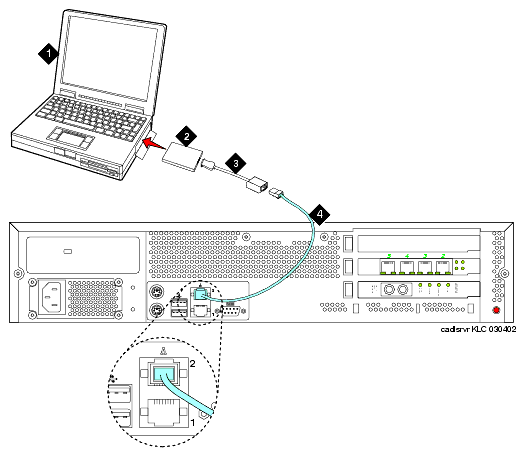
Once connected, you can administer the media server using these tools:
You can access the media server Web interface by either connecting directly to the services port on the media server (see Services laptop computer connected directly to the media server ) or connecting over the customer's network.
To use the media server Web interface, open either the Netscape or MS Internet Explorer browser. In the Location/Address field, type 192.11.13.6. When prompted, log in to administer the S8700 media server and the Avaya MultiVantage software features.
To use the media server Web interface, open either the Netscape or MS Internet Explorer browser. In the Location/Address field, type the active server name or IP address. When prompted, log in to administer the S8700 media server and the Avaya MultiVantage software features. You may also connect directly to an individual server using its name or IP address.
To use Avaya Site Administration, open the application and select the configuration you want to access. When prompted, log in to administer the Avaya MultiVantage software features (usable on the active media server only). See Installing Avaya Site Administration for information on installing Avaya Site Administration.
To use a command line interface in a Telnet window, click Start > Run to open the Run dialog box. Type telnet 192.11.13.6. When prompted log in to administer the Avaya MultiVantage software features (usable on the active media server only).
To use a command line interface in a terminal emulation window open your terminal emulation program. Establish a network connection to either the active server name or IP address. Note: If a connection to Avaya MultiVantage software is desired, use port 5023 for this connection. Avaya MultiVantage software is only accessible via the active server. When prompted, log in to administer the Avaya MultiVantage software features (usable on the active media server only).
The only terminal emulation programs supported are Microsoft's HyperTerminal and Avaya Terminal Emulator. Terranova is no longer supported.
|
|
|