Connect the P333T-PWR switch
Power up--AC input
- Insert the power cord into the power connector (BUPS or AC Power Supply) on the rear of the unit. See Connectors on the P333T-PWR switch.
Connectors on the P333T-PWR switch��
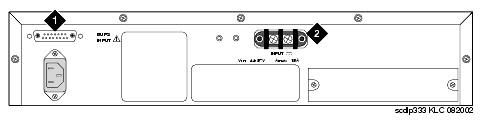
- Insert the other end of the power cord into a nonswitched electrical outlet or the connector on the BUPS.
The unit powers up and performs a self-test procedure. The LEDs flash at regular intervals after the self-test procedure is completed successfully.
Power up--DC input (optional)
The P333T-PWR switch can operate on the AC input only. However, you may wish to use the optional DC input for the following:
- Backup for the power over Ethernet ports
- To provide more than 200 watts for the power over Ethernet ports
NOTE: Please refer to the P333T-PWR switch User's Guide for more information.
Connect the Cables
Connect IP telephones, PCs, servers, routers, workstations, and hubs.
- Connect the Ethernet connection cable (not supplied) to a 10/100 megabits per second port on the front panel of the Avaya P333T-PWR switch.
NOTE: Use standard RJ45 connections and a CAT5 cable for 100 megabits per second operation.
- Connect the other end of the cable to the Ethernet port of the PC, server, router, workstation, IP telephone, switch, or hub.
NOTE: Use a crossover cable when connecting the Avaya P333T-PWR switch to a switch or hub.
- Check that the appropriate link (LNK) LEDs light up.

