

|
|
|
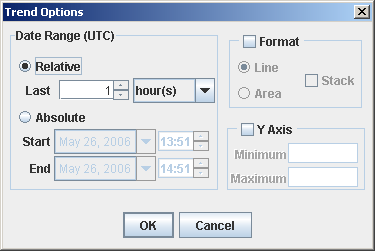
Click the Options button to use the Trend Options dialog box. Use the Trend Options to change the date range, the graph format, or Y-axis.
Use the Date Range items to specify the time period that you want the graph to cover. If you specify an absolute range of dates and times, the report always displays these dates, no matter when you view it. If you specify a relative range, the dates that the report covers change each time that you view the report.
Before you set a date range, you must understand the relationship between the graphing utility and the trending database. If the database contains insufficient datapoints for the period of time that you select, the graph-generating utility uses average values instead of actual values.
You can create a line or an area graph, and you can choose to stack or not stack the data. Stacked graphs use a previous graph line as the baseline for the next row of data. Unstacked graphs chart all graph lines from the same baseline. You can also specify minimum and maximum values for the Y axis, although the graphing process can override your values to generate a legible graph. Note that if you are modifying an existing report, you might be unable to change the minimum value, depending on the nature of the data.
The Trend Options format can be one of the following:
Figure 14: Trend Options dialog box
|
|
|