

|
|
|
Whenever you view a report, CNA must generate the report from the current available data. You can save the trend report and save the graphs for later use as the data will change with time. To save a trend report, use the Save command in the File menu.
To view a saved report, you can either select a report from the list and click Show Report in the right margin of the dialog box, or double-click the report name in the list.
To change the definition of an existing graph, double-click the graph in the trend report that is displayed in the information window. You can also click the graph and then click Modify at the bottom of the report window. A yellow rectangle is drawn around the selected graph. Press Escape on the keyboard to clear this rectangle. Either action opens the Trend Definition window. You can Change the date range, the type or the style for the graph. You can also select a graph element from the list and change the criteria or delete the criteria, or add a new element to the graph.
When you finish making changes, click Modify at the bottom of the definition window to return to the display of your report. The system redisplays the graph with the modified criteria.
If you double click the text of the title that is over the graph, you can edit that text in place, without opening the Trend Definition window.
To save your changes, click Save Report at the bottom of the window.
Trend reports consist of one or more graphs that track one or more items over time. In addition to the trend report templates, you can also create your own new trend report.
To define your own new trend report:
As you select items from the Type and Data lists, the message box to the right of these fields display information about type and data selections.
The choices in the Data list depend on the Type selection. Different types have different data. For more information on the various Type and Data selections and the graph that the selections generate, see Trend Report Data Types in Chapter 2: Reports in the CNA Reporting Guide.
You can specify which type of values to use in the graph when the trending database does not have sufficient hourly datapoints to graph the requested time period. You can select average, minimum, or maximum values. For more information about function values, see Trending Database in Chapter 2: Reports in the CNA Reporting Guide.
The database contains sufficient hourly average datapoints for the time period that you want to graph, the average, the minimum, and the maximum function values are identical.
If your trend graph spans a large period of time, such as several months, sufficient datapoints to chart the graph from the hourly datapoints, might not exist, and the graphing utility substitutes aggregated values. This flattens out spikes in the data. If you want to use these spikes as indicators that an event is worth further investigation has occurred, select e maximum from the Function list. The plot line is then charted from aggregates based on maximum values instead of averages, and spikes in the data are still be evident.
Once you select the data type, the selection boxes fill with additional reporting definitions.
When either of these boxes contain data and is selected, a search feature locates items as you enter characters from the keyboard. You can use this feature to quickly locate a specific prefix in a long list of prefixes.
NOTE: The search feature times out after a one-second delay between keystrokes. For example, if you type the first prefix that begins with the number 6 is selected. If you type a second number 4, for example before the 1-second limit, the first prefix that begins with 64 is selected. If you wait for more than 1 second between keystrokes, however, the 6 is lost and the search feature looks for a prefix beginning with 4.
This action remains unavailable until you make all the selections that are required for the trend definition.
Use Remove, Replace, and Clear List buttons as follows:
The list can contain up to 10 items. Each item on the list is represented by a different line on the chart that you create. Lines or areas are the color that the table indicates. To customized colors, double-click the color swatch in the table.
To change the name of the graphed item, double-clicking the name in the selected-item list.
Unlike other file types, trend report file names can contain spaces and the slash (/) character. These characters are encoded when the file is written to the hard disk drive of the CNA system and decoded whenever the file name is redisplayed in the Web interface. For more information, see the description of the ls command in the CNA Command Reference Guide.
The information window automatically changes to the Trend tab and a chart will be drawn using the items in the graphed-items list. See Figure 15.
Figure 15: User-created trend graph
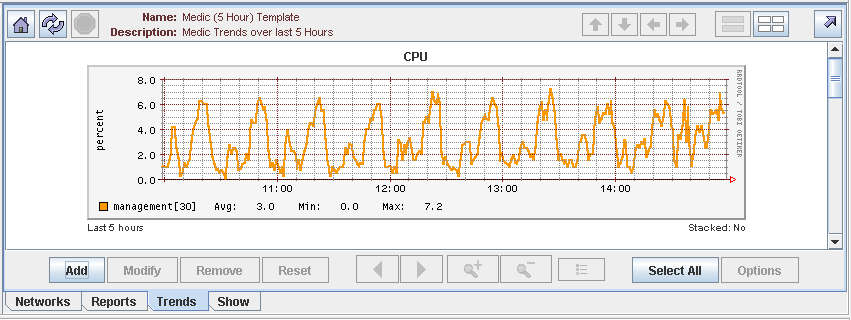
The units that are displayed for the Y axis (vertical) vary according to the items that are being graphed. Numbers on the Y-axis might be accompanied by one of the following suffixes:
You can add multiple graph lines to a single chart, although the Y axis may lose meaning if the graph lines do not display comparable data.
The legend at the bottom of the graph identifies the graph lines by color key. Items are listed by the name that is shown in the Select <item> pane in the Trend Definition window, or by a combination of items if both selection panes were active.
To edit this field, double-clicking the field in the List pane in the Trend Definition window.
The number or the letter in the square brackets that follows the label shows the interval that each data point represents. The intervals are h for hourly, d for daily, m for monthly, and y for yearly. If the brackets contain a number only, that interval is in seconds. For more information about data intervals, see Chapter 2: Reports in the CNA Reporting Guide.
If your graph spans a change in data-collection frequency, the key shows two bracketed intervals, and the X-axis shows both intervals in the appropriate times. For more information about trend data frequency, see Chapter 2: Reports in the CNA Reporting Guide.
While a trend report is displayed, you can use the buttons that are at the bottom of the graph. Note that some of these buttons are not active until you select a graph in the trend report:
You can select a graph by single-clicking the graph. When you select a graph, it is surrounded by a blue rectangle, and additional controls will become active.
When the graph is selected, you can:
For information on trend report controls, see Table 6.
NOTE: Trend reports are not saved as complete units or graphic images. When you save a trend report, what you actually save is the report query, which are the criteria that the CNA system uses to select data from the database. Each time that you recall the saved trend report, the datapoints required to construct the graphs are retrieved from the trending database. If you cleared the trending database for the time that is covered by the report query, the graph will be empty. If you want to preserve the actual constructed graph of a trend report, use e-mail to send the graph yourself and save the image.
Right-click the mouse inside the graph (within the grid) to open a floating menu that is linked to the Executive Summary report. The time stamp that this menu displays is determined by the X-axis position of the mouse when you clicked inside the graph. This time stamp is accurate to within 15 minutes for large-scale graphs.
Granularity of the data is indicated by square brackets following graph line’s name: H means the data is an hourly sample, D means daily, W means weekly, M means monthly, Y means yearly (for more information about sample sizes, see the section Trending Database in Chapter 2: Reports in the CNA Reporting Guide.
A number in the square brackets means that the data is gathered from a CNA polling process instead of the hourly database snapshot. The number is the collection interval in seconds.
The Avg., Min., and Max. numbers in the key at the bottom of each graph show the average, the minimum, and the maximum values in the visible graph, respectively.
Graphs that indicate the states of boolean values--on/off, yes/no, or true/false also contain a second key below the color key. This second key consists of a numbered list that identifies the Y-axis position of the items that are graphed.
For more information about graph keys, see Y Axis Key Lists in Chapter 2: Reports in the CNA Reporting Guide.
The color-coded key at the bottom of the graph identifies the plot lines by name. Note that you can edit this name from the Trend Definition dialog box.
If entries in the key are truncated because of the length of data and width of the graph, select the graph and click the show legend button. This button is next to the zoom button.
This action opens the Legend window (Figure 16), which displays a detailed key. The legend window also display the original values for any plot lines that you modified.
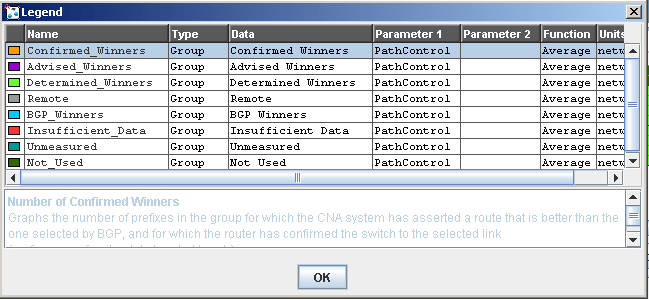
The legend includes the following information:
You cannot edit the name of a graph line in this window. If you want to change the name of the graph line, close the Legend window and click Modify to return to the Trend Definitions dialog box.
|
|
|