|
|
|
The Trends item in the Quick Links pane provides access to all trend reports. These reports include user-defined graphs that chart performance, link-usage, and internal CNA events and conditions over a specified span of time.
Click the Trends Quick Link to display the available trend templates in the information window. The CNA system comes with several trend-report templates that you can use unchanged or modify.
NOTE: You can also click the Trends tab at the bottom of the window of the window to get access to the trend reports.
In the list of available trend reports, the information window identifies the prepackaged trend templates with a T. User-created trend reports do not have this symbol. To change the sort order of the displayed contents, click on the column headings in the information window. The following controls are shown in the Trends window when you view the available trend reports.
| Control icon |
Description |
|---|---|
When you select a sorting order, the column head includes an arrow. The arrow points up if the sort is in ascending order. In ascending order, numerals come first, followed by A to Z, and then a to z. The arrow points down if the sort is in descending order. In descending order, z to a come first, followed by Z to A, and then numerals.
For descriptions of the contents of the templates that are provided, see Trend Reports in Chapter 2: Reports in the CNA Reporting Guide. Once you make your changes and save the changes with names of your choosing, you can delete the templates. You can then download the templates at the Avaya support Web site.
Trend reports consist of one or more graphs that show usage and performance information over time (Figure 12). You must fully configure your CNA system and allow the system to gather some data before the template reports can show any data.
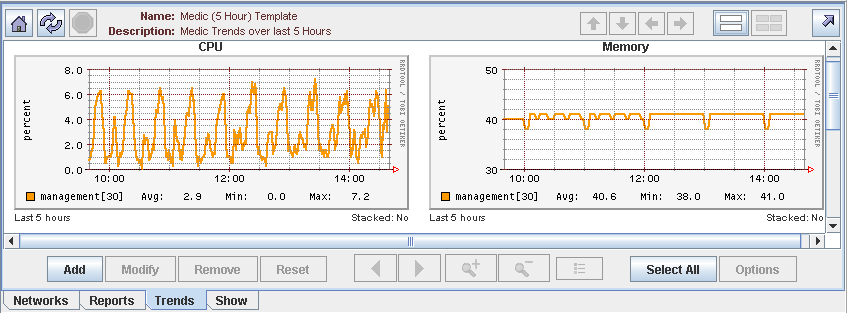
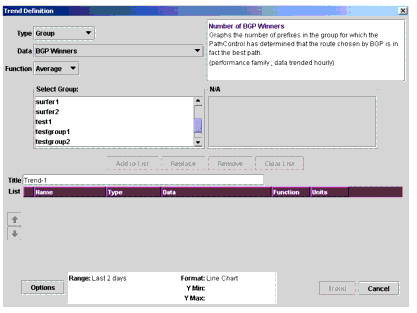
When the actual trend report is the information window, double-click on the report to display the Trend Definition dialog box.
Figure 13: Trend Definition dialog box
The following controls are shown in the Trends window when you view the trend report (Table 6).
|
|
|