DEFINITY Made Easy Home Page Table of contents Previous page Next page Index Links Frequently asked questions
Go to Upgrades for si Go to Installation for MCC Go to Installation for SCC


Troubleshooting firmware downloads

This section contains three troubleshooting sections:

Reset 1 or 2

If the system does a reset 1 or 2 and no alarms are present:

  1. At the SAT type display initcauses and press return.

  2. Clear any errors.

Test firmware download

To test the firmware download process:

  1. At the SAT type test firmware download and press return.

  2. The Test Results screen (Screen ) appears.
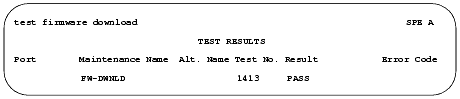
Test Results screen

  1. The example shows PASS in the Result field, indicating a successful test of the firmware download circuitry.

  2. If the test does not pass, refer to the Maintenance for Avaya MultiVantage DEFINITY Server.

Backing out of a firmware download

To revert back to the old firmware image file on TN799DP (C-LAN) or TN2501AP (VAL) only:

  1. At the SAT type get boot-image <UUCSS> and press return to check the status of the firmware images on the target circuit pack.
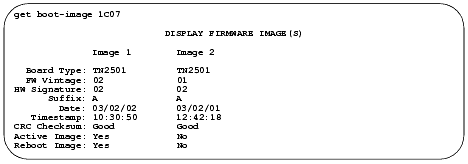
  2. The Display Firmware Image(s) report appears.

Display Firmware Image(s) screen

Check the date and time stamps to determine whether to revert back to Image 1 or Image 2. In the example that follows, we are reverting back to Image 2, because it has the older date and time stamp.
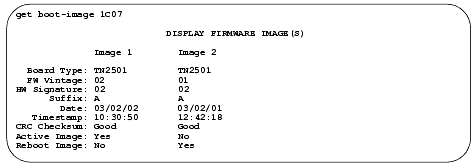
  1. At the SAT type set boot-image board <UUCSS> image <1 | 2> and press Enter.

  2. Example: set boot-image board 1C07 image 2


Note: In most cases the image with the more recent date and time stamp is the new firmware image file.

The system responds with Command Successfully Completed.

  1. At the SAT type get boot-image <UUCSS> and press return to check the status of the firmware images on the target circuit pack.

  2. The Display Firmware Image(s) report appears.

Display Firmware Image(s) screen

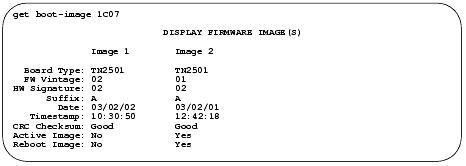
Note that the values in both the Active Image and the Reset Image fields have changed.

  1. Reseat the circuit pack to activate the new firmware image:


Caution! Electrostatic discharge can severely damage sensitive electronic circuits. Before handling any electronic hardware, be sure to wear a grounding wrist strap or other static-dissipating device.


Caution! For TN2501AP (VAL) ensure that both the top green and top amber LEDs are out.

    1. Release the latch handle to free the circuit pack from the carrier.

    2. Pull the circuit pack out approximately 1-2 inches (2.54 to 5.08 cm.).

    3. Re-insert the circuit pack into the carrier.

    4. Close the latch securely.

    5. Wait until all 3 of the top LEDs (red, green, and amber) are out.

  1. At the SAT type get boot-image <UUCSS> and press return to check the status of the firmware images on the target circuit pack.

  2. The Display Firmware Image(s) report appears.

Display Firmware Image(s) screen

  1. Ensure that both the Active Image and the Reset Image fields are as you expect.


DEFINITY Made Easy Home Page Table of contents Previous page Next page Index Links Frequently asked questions
Go to Upgrades for si Go to Installation for MCC Go to Installation for SCC
Copyright 2002 Avaya Inc.
Send comments to MadeEasy Development Team


Always check at the Made Easy Web site for the most current information.