|
|
|
CAUTION: Be sure to set the time and timezone first. Failure to do so may cause network problems later.
Begin _____________________
Note: Do not confuse the configuration web pages in this section with the Avaya Installation Wizard (AIW). AIW is an optional tool for new installations only and helps you install both S8300 and G700 software. After the initial installation of software, however, you must modify S8300 configuration with the S8300 Configuration web pages.
The Configure Server screen appears.
Figure 32. Configure Server Screen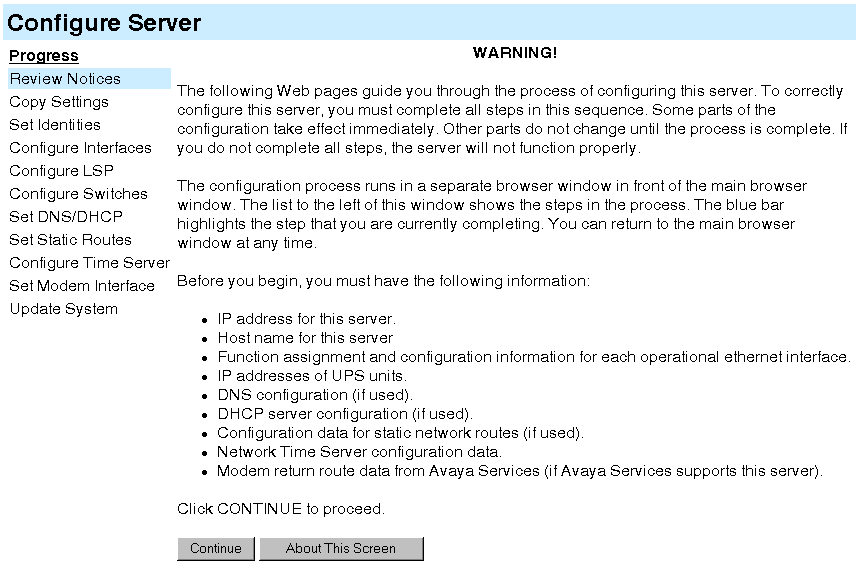
The Back Up Data Notice screen appears. On a new installation, a backup is unnecessary.
Figure 33. Back Up Data Notice Screen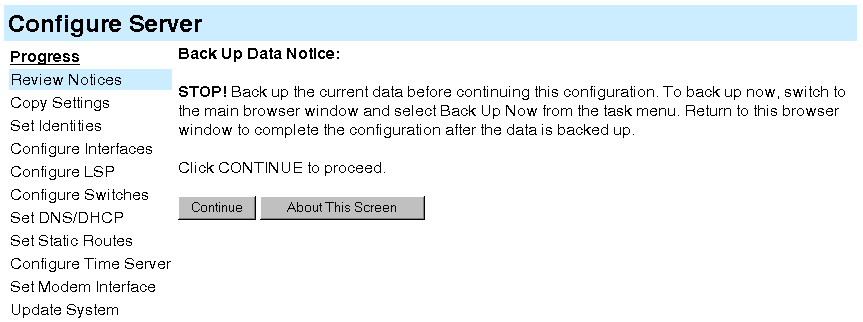
The Select Method screen appears.
Figure 34. 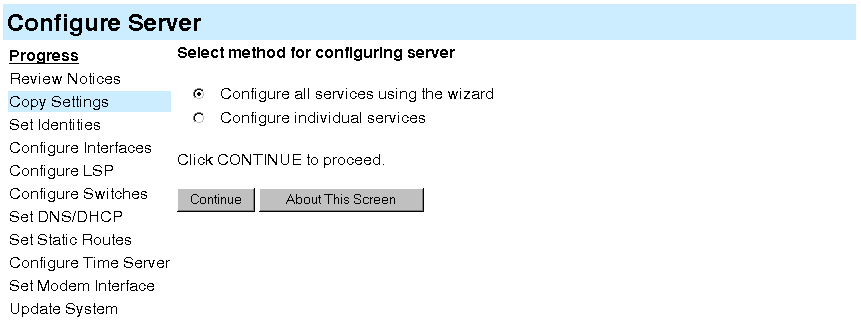
Select Method Screen
Note: This option is not to select the Avaya Installation Wizard. AIW is an optional tool you can use instead of the S8300 configuration wizard web pages.
If you are upgrading an existing system, you may also click Configure individual services. This method is useful after an initial configuration has been completed and one or more services need to be changed.
The Set Server Identities screen appears.
Figure 35. Set Server Identities Screen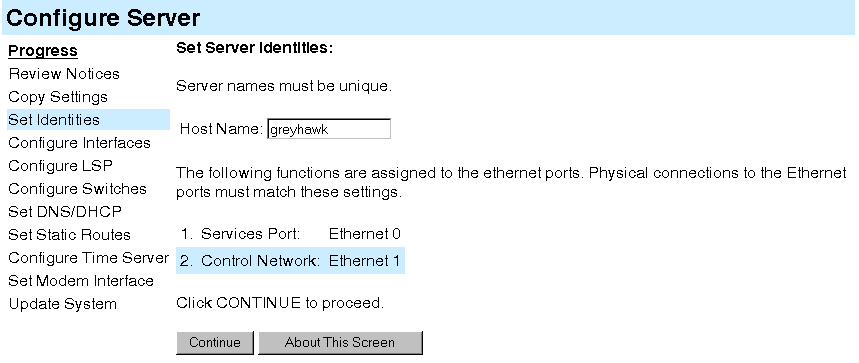
The host name uniquely identifies this server.
CAUTION: If the S8300 on the G700 is hosting an IA 770 INTUITY AUDIX Messaging Application with Digital Networking, the name must be 10 characters or less.
The screen also lists the current physical cabling to the server. For example, the Services laptop is connected to Ethernet interface 0. Ethernet functions are fixed on the S8300 media server and cannot be changed.
The Configure Ethernet Interfaces screen appears.
Figure 36. Configure Ethernet Interfaces Screen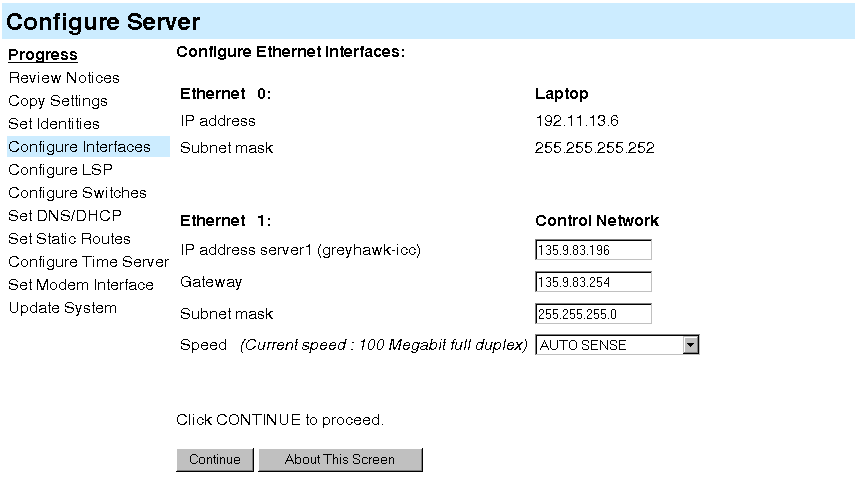
CAUTION: Do not guess on the addresses on this screen. If you enter the wrong addresses, service will be disrupted across the customer's network and may be difficult to correct.
The Configure Local Survivable Processor screen appears.
Figure 37. 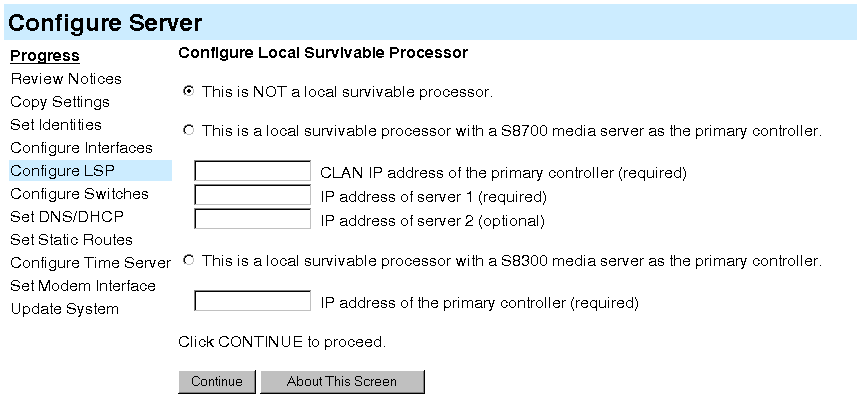
Configure Local Survivable Processor Screen
CLAN IP address of the primary controller -- Enter the IP address of any CLAN board in the S8700 media server configuration.
IP address of server 1 -- Enter the IP address of the primary S8700 server.
IP address of server 2 -- Enter the IP address of the duplicated S8700 server. If server 2 is present, this specific IP address must also be entered.
Note: The CLAN boards must be TN799DP running version 5 or greater firmware. Be sure to check the firmware version for these boards on the S8700. For information on how to upgrade the firmware on the S8700, please see the section "Upgrade Firmware in Selected Port Cabinet Packs" in Upgrading the Avaya Media Server Configuration in the S8700 documentation portion of this documentation CD (''Avaya S8300 and S8700 Media Server Library CD, 555-233-825'').
The Ethernet Adjuncts screen appears.
Figure 38. Ethernet Adjuncts Screen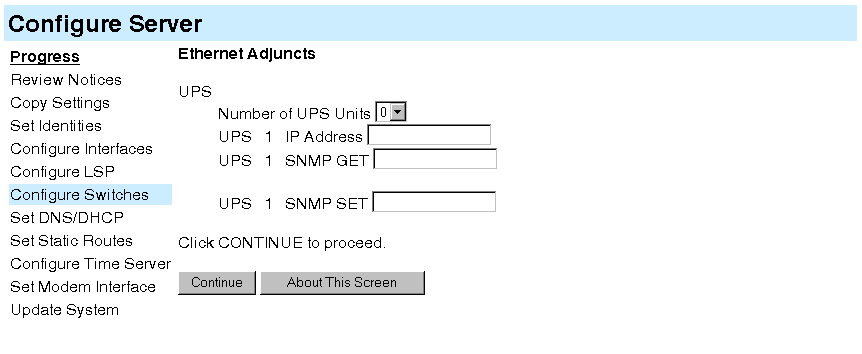
The External DNS Server Configuration screen appears.
Most corporate networks have one or more domain name service (DNS) servers that associate an IP address with a device's name. When the DNS is administered with the S8300 Media Server name, you will be able to access the S8300 server by name as well as IP address over the corporate network.
CAUTION: If you configure an external DNS server, the DNS will be an extra device that, if not working properly, can cause delays in S8300 access.
Figure 39. 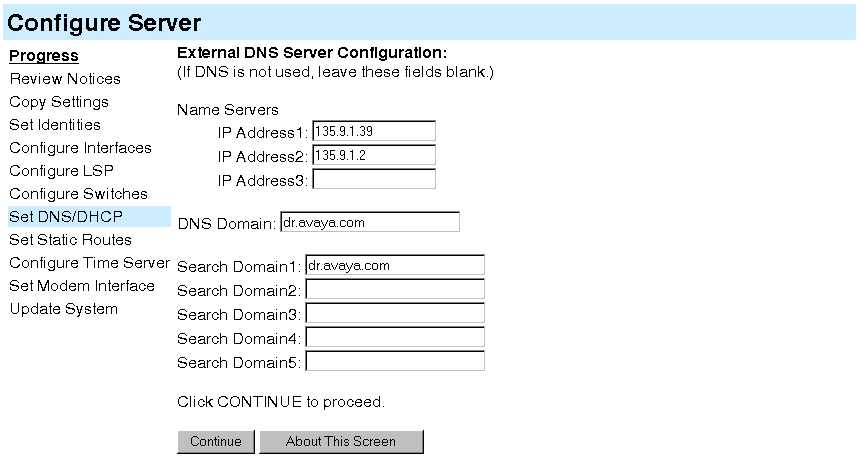
External DNS Server Configuration Screen
In the Name Servers fields, enter the IP addresses for up to 3 DNS servers on the corporate network. The S8300 Media Server checks the DNS servers in the order in which their addresses are entered for name-to-IP address resolution.
In the DNS Domain field, enter the name for the part of the network on which the DNS server(s) reside (for example, mycompany.com). Internet domains are sets of addresses generally organized by location or purpose.
In the Search Domain fields, 1 to 5, enter the names of the domains that will be searched, in order, if a user enters an unqualified or incomplete name (such as a host name only without its domain).
Note: For Search Domain 1, enter the same domain name you entered in the DNS Domain field above.
The Static Network Routes screen appears.
Static Network Routes are used only if the customer has defined additional routes for IP packets other than through the default gateway.
Figure 40. Set Network Routes Screen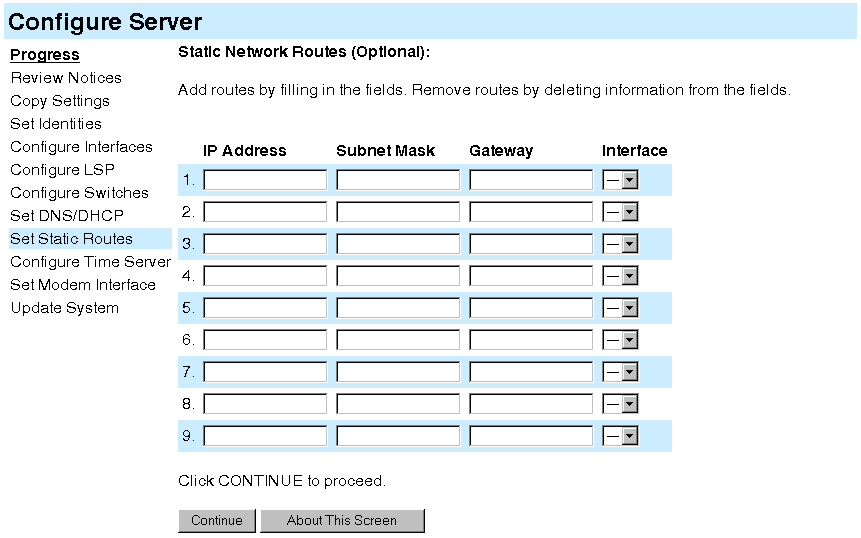
The Network Time Server screen appears.
The Network Time Server screen allows you to set up the Network Time Protocol (NTP) Service.
Figure 41. 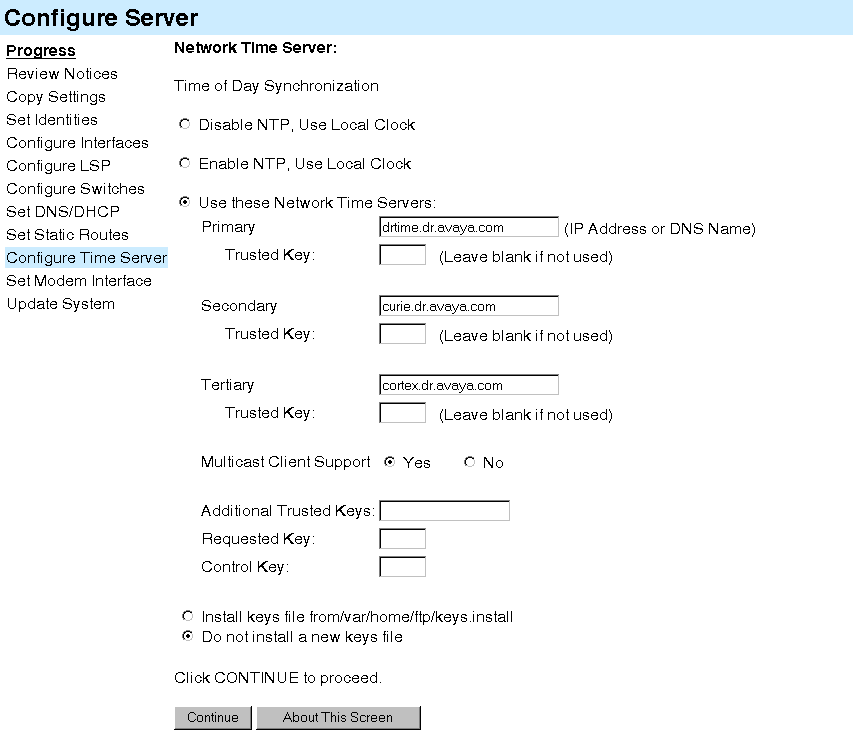
Network Time Server Screen
You will be able to make the following choices, according to the planning documentation:
If you did not select Use these Network Time Servers, click Continue.
Primary -- Enter an IP address or DNS name. If a trusted key is required, enter a valid key number in the Trusted Key field.
Secondary -- Enter an IP address or DNS name. If a trusted key is required, enter a valid key number in the Trusted Key field.
Tertiary -- Enter an IP address or DNS name. If a trusted key is required, enter a valid key number in the Trusted Key field.
Multicast Client Support -- Select Yes if the NTS routinely broadcasts its timing messages to multiple clients. Select No if the S8300 Media Server is to poll (directly request the time from) the NTS.
Additional trusted keys (optional) -- If you want to encrypt the messages between an NTS and the S8300 Media Server, list the valid key numbers, up to 3, provided by your LAN administrator on the preinstallation worksheet. Trusted keys function like a checksum to make sure the time packets are valid. Use a blank space as a delimiter if there is more than one key (for example, 2 3 6 to specify valid keys 2, 3, and 6). These numbers are associated with encryption codes in a "keys" file.
Request key -- Enter a key to send a remote query request. Only 1 key is allowed in this field.
Control key -- Enter a key to query and request changes to an NTS. Only 1 key is allowed in this field.
Install keys from var/home/ftp/keys.install -- You must provide a file named keys.install to allow the media server to communicate with the NTS, if any.
Note: If you upload the keys file later, you have to run the Configure Server wizard again to have the system recognize it. To do this, click Continue to page through the wizard until you come to this screen. Specify the keys file location, then Continue through the end of the wizard to update the system files.
At the next screen, Set Modem Interface, you may set up the Modem Interface IP Address for Avaya-provided service.
Figure 42. 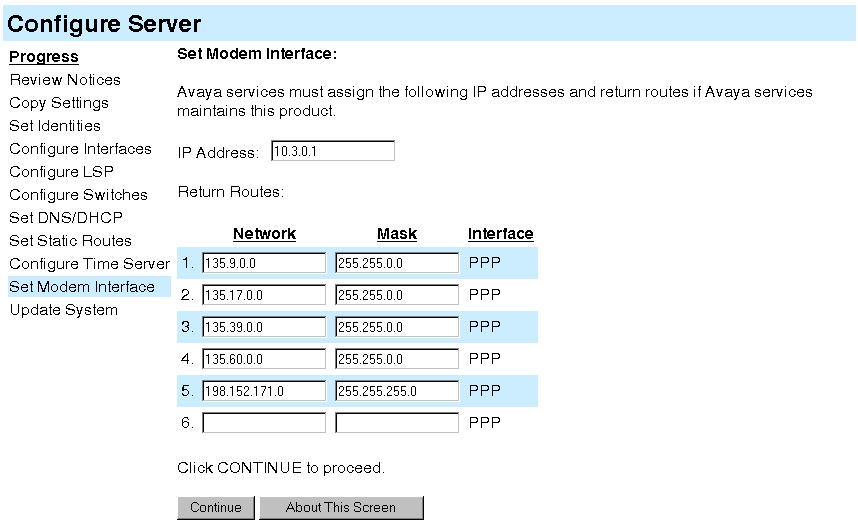
Set Modem Interface Screen
The Modem IP Address and Return Routes for the Avaya INADS alarming are assigned by the ART tool. You should have obtained these addresses when you performed Run the ART Tool for the INADS IP Address.
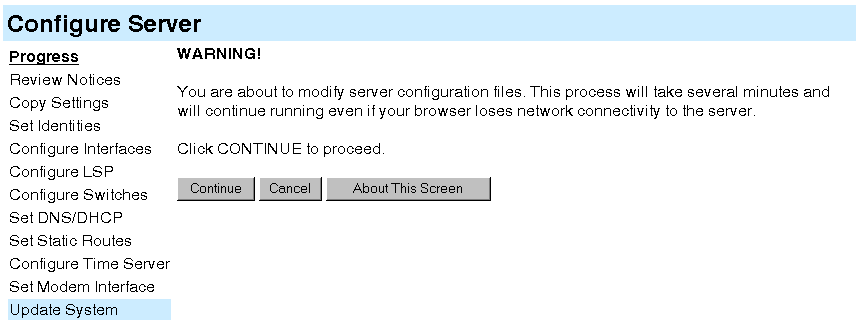
The next Warning screen indicates that the data entry process has concluded and that the system is ready to be configured.
This is the final step in configuring the system. When you click Continue, all the configuration information will be written to disk and implemented. This step normally completes in about 5 minutes.
This is your last chance to cancel or correct the configuration.
Note: For any configuration, it is always safe to Cancel the configuration, and run the Configure Server wizard again later from the beginning. You might use this option if you are checking or modifying settings on a server that has already been configured, and there is not a huge amount of new information to enter.
If the configuration status stops at some point and the screen appears to freeze, you may have lost contact with the server.
You can watch the progress of the configuration at the Updating System Files screen.
Figure 44. 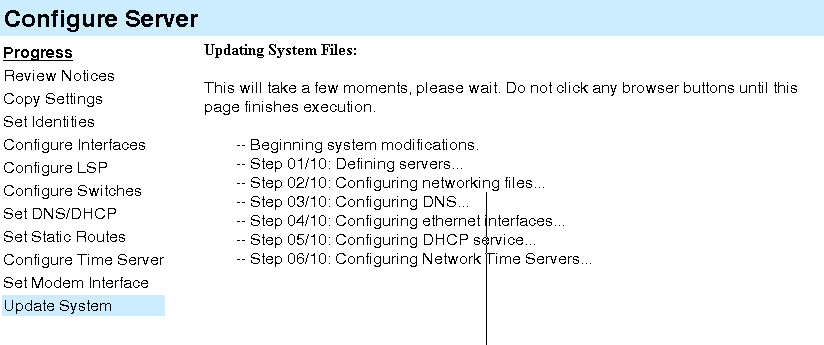
Updating System Files Screen
When the process is complete, you will receive a notification. Click Close Window and continue the configuration of the G700 Media Gateway on the command line interface.
You have now configured the Avaya S8300 Media Server. If this is a new installation, you may also have to load new software.
Note: You will also have to setup the INADS alarm via a command line. Call your service support center.
|
|
|