Administer MultiVantage Software on the S8700 (When the S8300 Is an LSP)
CAUTION: This administration applies only to an S8700 that serves as the primary controller. If the S8300 is an LSP, do not administer MultiVantage software on it. Translations are automatically copied to the S8300 LSP from the S8700 primary controller after a save translations command or a data backup.
To continue administration of various features available to the S8700 Media Server with G700 Media Gateways, you will use the SAT tools. Among many other tasks, you will use the SAT interface to:
- Provide Ethernet access to MultiVantage (this should have already been established as a part of normal S8700 installation)
- Define the IP Network Region (this should have already been established as a part of normal S8700 installation)
- Add a Media Gateway
Note: This document covers only the administration of MultiVantage software required for the G700 Media Gateway to communicate with the primary controller over a customer's network. For the majority of administration required, see ''Administrator's Guide to MultiVantage Software, 555-233-506,'' or ''Administration for Network Connectivity for MultiVantage Software, 555-233-504.''
Note: For information on installing the CLAN boards on the S8700 port networks and complete information on installing an S8700 Media Server, see the Installation documentation on the ''Avaya S8300 and S8700 Media Server Library CD, 555-233-825.''
Assign the S8700's CLAN Node Name and IP Address
Begin _____________________
Note: This should have already been established as a part of normal S8700 installation.
Note: The CLAN boards must be TN799DP running version 5 or greater firmware. Be sure to check the firmware version for these boards on the S8700. For information on how to upgrade the firmware on the S8700, please see the section "Upgrade Firmware in Selected Port Cabinet Packs" in Upgrading the Avaya Media Server Configuration in the S8700 documentation portion of this documentation CD, ''Avaya S8300 and S8700 Media Server Library CD, 555-233-325.''
- At the S8700 SAT prompt, type change node-names ip to open the Node Names screen.
- Go to page 2
Figure 57. Node Names Screen.
change node-names ip���������������������������������������������Page 2 of 2
Name IP Address Name IP Address
default_________��0__.0__.0__.0__ ���_______________����___.___.___.___
node-1������� __ 192. 168. 1 _. 124 ���_______________ ___.___.___.___
node-2___ � 192. 168. 1 _. 97 ����_______________ ___.___.___.___
node-4__________ 192. 168. 1 _. 51_ ���_______________ ___.___.___.___
__________ . . _. _����_______________ ___.___.___.___
|
- Enter the appropriate values for the Media Gateway (node-4 in this example).
| Field
|
Conditions/Comments |
| Name |
The node names for the following two nodes were already on the screen:
- node-1: C-LAN Ethernet port on the S8700 switch.
- node-2: Interface on the router to the subnet of the S8700 switch.
|
| IP Address |
The unique IP address for the C-LAN node named in the previous field. See the description of the Subnet Mask field in the next task for information on valid IP addresses. |
- Press F3 (Enter) when complete.
End _______________________
Define the IP Network Regions for the G700 Media Gateway and the S8700 CLAN
Board(s)
Begin _____________________
Note: This should have already been established as a part of normal S8700 installation.
You must define an IP network region according to the planning documentation. Use the system defaults if the planning documentation does not specify otherwise.
For a G700 Media Gateway with an S8300 local survivable processor and an S8700 as the primary controller, there may be more than one network region, since there can be up to 30 G700 Media Gateways connected to it with thousands of telephones in the network. In this case, you define a network region for each CLAN board on the S8700 port networks, though they may also have the same network region.
The G700 Media Gateway, in this case, may also share the same network region as the CLAN board(s). However, it may have a different network region because of the geographic distances of the connections between the G700 and the S8700. The G700 network region may also differ because of the nature of the endpoints connected to it.
CAUTION: Defining IP network regions can be quite complex. For detailed information on the use and administration of IP network regions, see ''Administration for Network Connectivity for MultiVantage Software, 555-233-504.''
- On the S8700 primary controller for the G700 Media Gateway, type change ip-network-region <network_region>, where the <network_region> is the region you will assign to the G700 Media Gateway. This region number might or might not match the network region of the S8700 CLAN boards.
The S8700 displays the IP Network Region screen.
Figure 58. IP Network Region Screen
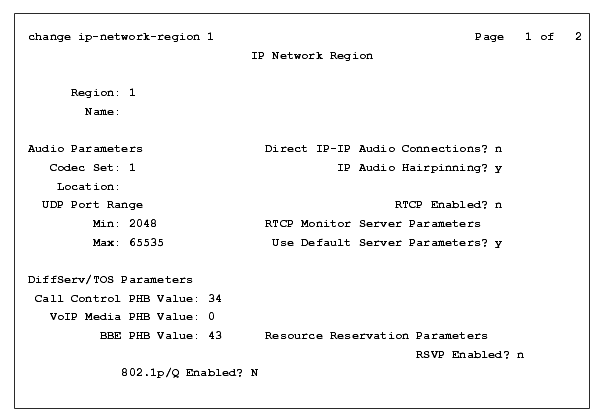
- Complete the fields as described in ''Administration for Network Connectivity for MultiVantage Software, 555-233-504.''
Note: It is strongly recommended to use the defaults in the screen.
- If the network region of the G700 is different than that of the S8700 CLAN board(s), press NextPage to complete page 2, Inter Network Region Connection Management.
The S8700 displays page 2 of the IP Network Region screen.
Figure 59. IP Network Region Screen, Page 2
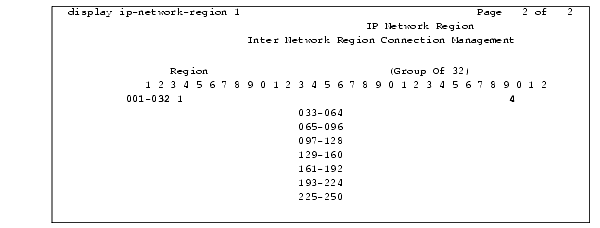
- For the region of the CLAN board(s), type the number of the codec set that the S8700 will use to interconnect the G700 and the CLAN board(s). For more detail, see ''Administration for Network Connectivity for MultiVantage Software, 555-233-504.''
- Press F3 (Enter) when complete.
- Repeat step 1 through step 5 for the S8700 CLAN board(s).
End _______________________
Define the IP Interfaces of the S8700 Port Network CLAN Boards
Begin _____________________
Note: This should have already been established as a part of normal S8700 installation.
- Enter change ip-interfaces to open the IP Interfaces screen.
Figure 60. IP Interfaces Screen
change ip-interfaces Page 1 of 6 SPE B
IP INTERFACES
Enable Net
Eth Pt Type Slot Code Sfx Node Name Subnet Mask Gateway Address Rgn
y C-LAN 02C18 TN799 C st7clan 255.255.0 .0 172.23 .23 .254 6
n MEDPRO 02C08 TN802 B st7_mp1 255.255.255.0 192.168.22 .254 6
y MEDPRO 02C11 TN2302 st7_prowler1 255.255.0 .0 172.23 .23 .254 7
y MEDPRO 02A12 TN2302 st7_prowler2 255.255.0 .0 172.23 .23 .254 7
y MEDPRO 02A13 TN2302 st7_prowler3 255.255.0 .0 172.23 .23 .254 6
y MEDPRO 02A14 TN2302 st7_prowler4 255.255.0 .0 172.23 .23 .254 1
y MEDPRO 02A15 TN2302 st7_prowler5 255.255.0 .0 172.23 .23 .254 7
y C-LAN 02A16 TN799 C st7clan2 255.255.0 .0 172.23 .23 .254 6
y C-LAN 02B17 TN799 C st7clan3 255.255.0 .0 172.23 .23 .254 6
y C-LAN 01A06 TN799 C st7clan4 255.255.0 .0 172.23 .23 .254 6
y MEDPRO 02C13 TN2302 st7_prowler6 255.255.0 .0 172.23 .23 .254 1
n MEDPRO 02C15 TN2302 st7_prowler7 255.255.0 .0 172.23 .23 .254 6
n MEDPRO 02C16 TN2302 st7_prowler8 255.255.0 .0 172.23 .23 .254 6
n MEDPRO 02D06 TN2302 st7_prowler9 255.255.0 .0 172.23 .23 .254 6
n MEDPRO 02D07 TN2302 st7_prowler10 255.255.0 .0 172.23 .23 .254 7
|
- Complete the fields as described the in the following table.
| Field |
Conditions/Comments |
| Enable Eth Pt |
The Ethernet port must be enabled (y) before it can be used. The port must be disabled (n) before changes can be made to its attributes on this screen. |
| Type |
Either C-LAN. |
| Slot |
The slot location for the circuit pack. |
| Code |
Display only. This field is automatically populated with TN799 for C-LAN. |
| Sfx |
Display only. This field is automatically populated. |
| Node name |
The unique node name for the IP interface. The node name here must already be administered on the Node Names screen. |
| Subnet Mask |
The subnet mask associated with the IP address for this IP interface. For more information on IP addresses and subnetting, see "Administration for Network Connectivity for Avaya MultiVantageTM Software, 555-233-504". |
| Gateway Addr |
The address of a network node that serves as the default gateway for the IP interface. |
| Net Rgn |
The region number for this IP interface. |
|
- Close the screen.
End _______________________
Add Media Gateways
Begin _____________________
When you are logged in to MultiVantage via SAT, you will be able to add G700 Media Gateways to the system.
CAUTION: Be sure the serial number for the G700 Media Gateway you enter in this procedure matches exactly the serial number displayed in Get the Serial Number of the G700. If entered incorrectly, the serial number will prevent the S8700 Media Server from communicating with the G700 Media Gateway.
- At the SAT prompt, type add media-gateway <number>
where <number> is the gateway number from 1 to 250.
The S8700 displays the Media Gateway screen.
Figure 61. Media Gateway Screen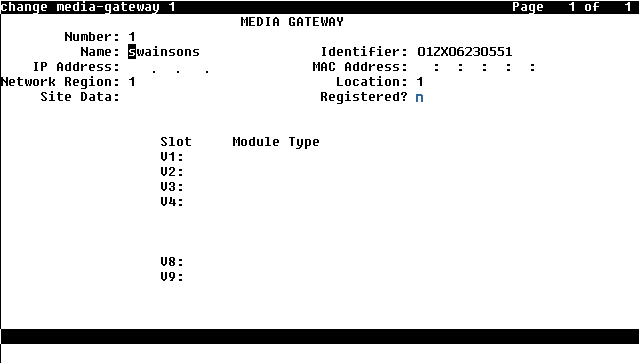
- Complete the Name field with the hostname assigned to the G700 Media Gateway.
- Complete the Identifier field with the serial number of the G700 Media Gateway. You can obtain the serial number by using the show system Media Gateway Processor CLI command at the "super" prompt. See Check the Serial Number of the G700 Media Gateway Processor. for details.
- Complete the Network Region field with the value supplied in the planning documentation.
- If specifically requested by the customer or your planning documents, type gateway-announcements in the V9 field. This field allows you to enable announcements on the G700 Media Gateway. V9 is a virtual slot. There is no announcement board associated with it. The announcements for the G700 are available in the G700 firmware and are administered in the same way as announcements on the TN2301 circuit pack used on S8700 port networks.
If there are multiple G700 Media Gateways sharing announcements, then enable announcements on the G700 that is connected to the trunks that will receive the announcements most often.
- Press F3 (Enter) to save your changes.
Note: The IP Address, MAC Address, and Module Type fields are populated automatically after the G700 media gateway registers with the server.
Figure 62. Media Gateway Screen (After Registration with S8700)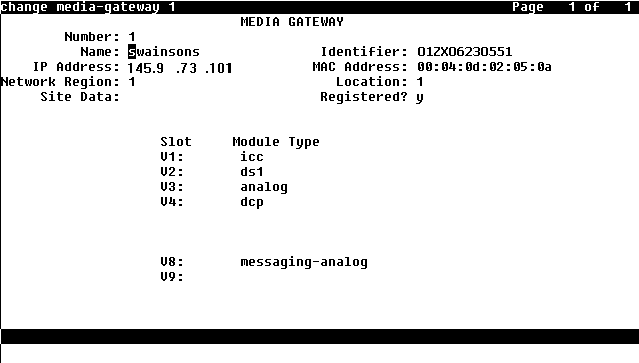
The Media Modules installed in the G700 are listed next to their slot numbers.
End _______________________
Verify Changes
Begin _____________________
To verify that a G700 Media Gateway has been successfully added:
- At the SAT prompt, type list media-gateway
Figure 63. List Media-Gateway Screen 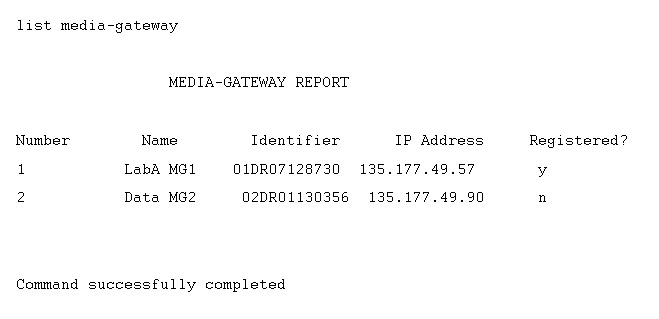
- Verify that the G700 Media Gateway has registered.
The y in the registered field signifies that the G700 Media Gateway has registered. If the G700 should become unregistered, the y will become an n, but the IP address will remain assigned to the G700 Media Gateway. If the G700 has never been registered, the IP Address field will be blank.
If the G700 fails to register, two common causes might be:
- The serial number added as the identifier for the G700 is wrong. To check, log back into the G700 gateway and type show system. Check the serial number that appears.
- There is no IP connection between the G700 and the S8300. To check, type show mgc and then ping mgp <controller_address>.
End _______________________
Enable Announcements, If Necessary
Begin _____________________
- Only if specifically requested by the customer or your planning documents, at the SAT prompt, type enable announcement-board <gateway_number>V9, where <gateway_number> is the number of the G700 Media Gateway you just added and V9 is the virtual slot (for example, 2V9 means Media Gateway number 2, slot V9.
- Press Enter to enable announcements.
The system displays the message Command successfully completed.
End _______________________
Save MultiVantage Translations
Begin _____________________
- At the SAT prompt, type save translations.
End _______________________

