

|
|
|
CAUTION: This administration applies only to an S8300 that serves as the primary controller, which can be either an internal or an external S8300. If the S8300 is an LSP, do not administer MultiVantage software on it. Translations are automatically copied to the S8300 LSP from the S8700.
To continue administration of various features available to the S8300 Media Server with G700 Media Gateways, you will use the SAT tools. Among many other tasks, you will use the SAT interface to:
Note: This document covers only the administration of MultiVantage software required for the G700 Media Gateway to communicate with the primary controller over a customer's network. For the majority of administration required, see ''Administrator's Guide to MultiVantage Software, 555-233-506,'' or ''Administration for Network Connectivity for MultiVantage Software, 555-233-504.''
CAUTION: Before continuing, be sure you have saved translations in MultiVantage software (see Run Save Translations).
Begin _____________________
Log in to the MultiVantage SAT Screens
Begin _____________________
Enter your login confirmation information as prompted:
Define the IP Network Region for the G700 Media Gateway
Begin _____________________
You must define an IP network region according to the planning documentation. Use the system defaults if the planning documentation does not specify otherwise.
For a G700 Media Gateway with an S8300 Media Server as primary controller, there will usually be one network region, defined as 1. You normally define this network region on the S8300 MultiVantage software, using the system defaults. You then assign the network region to the G700 Media Gateway.
CAUTION: Defining IP network regions can be quite complex. For detailed information on the use and administration of IP network regions, see ''Administration for Network Connectivity for MultiVantage Software, 555-233-504.''
The S8300 displays the IP Network Region screen.
Figure 52. IP Network Region Screen
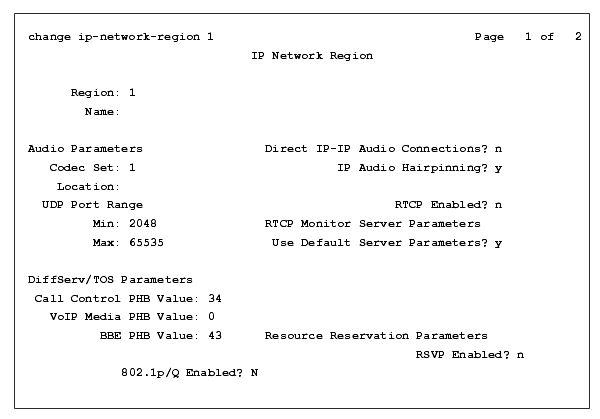
Note: It is strongly recommended to use the defaults in the screen. However, for the RTCP Enabled and RSVP Enabled fields, the entry should be n (no).
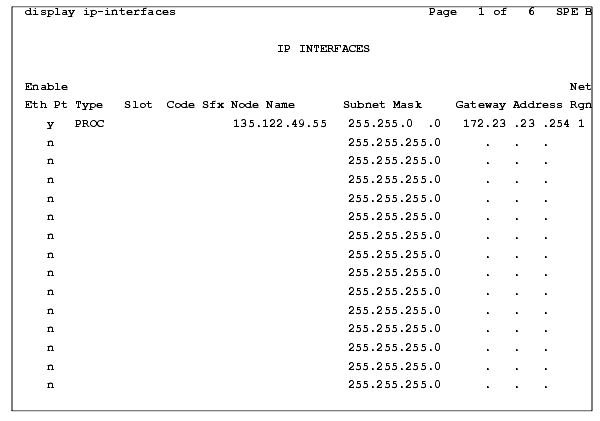
Assign the Network Region to the S8300 Media Server
Begin _____________________
The S8300 displays the IP Interfaces screen.
Figure 53. IP Interfaces Screen
Begin _____________________
When you are logged in to MultiVantage via SAT, you will be able to add G700 Media Gateways to the system.
CAUTION: Be sure the serial number for the G700 Media Gateway you enter in this procedure matches exactly the serial number displayed in Get the Serial Number of the G700. The serial number is case-sensitive, and if entered incorrectly, will prevent the S8300 Media Server from communicating with the G700 Media Gateway. In this case, the phones won't work.
The S8300 displays the Media Gateway screen.
Figure 54. Add Media Gateway Screen 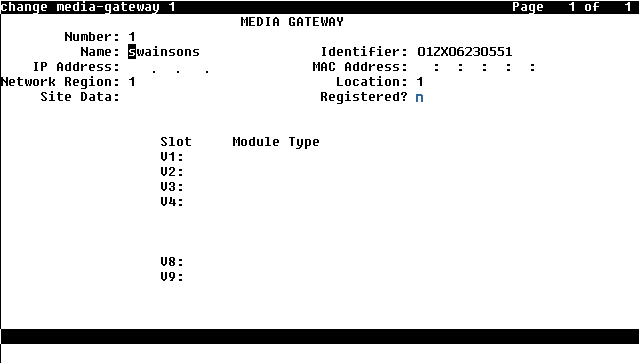
CAUTION: Be sure the serial number for the G700 Media Gateway you enter in this procedure matches exactly the serial number displayed in Get the Serial Number of the G700. If entered incorrectly, the serial number will prevent the S8300 Media Server from communicating with the G700 Media Gateway.
If there are multiple G700 Media Gateways sharing announcements, then enable announcements on the G700 whose trunks will receive the announcements most often.
Note: The IP Address, MAC Address, and Module Type fields are populated automatically after the G700 Media Gateway registers with the server.
Figure 55. Media Gateway Screen (After Registration with S8700)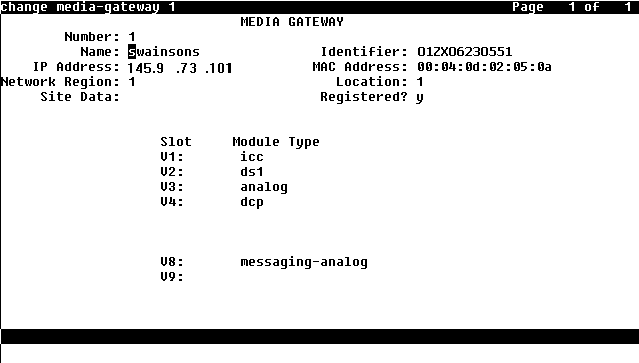
The Media Modules installed in the G700 are listed next to their slot numbers.
Begin _____________________
To verify that a G700 Media Gateway has been successfully added:
Figure 56. List Media-Gateway Screen 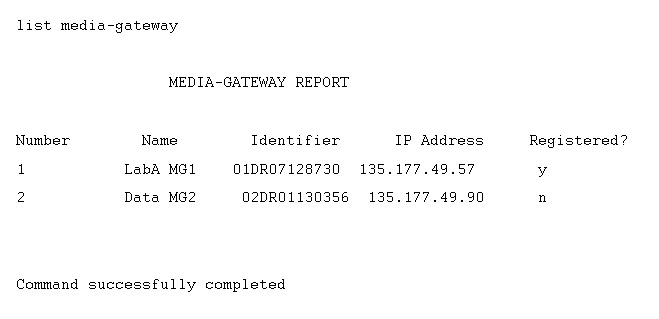
The y in the registered field signifies that the G700 Media Gateway has registered. If the G700 should become unregistered, the y will become an n, but the IP address will remain assigned to the G700 Media Gateway. If the G700 has never been registered, the IP Address field will be blank.
If the G700 fails to register, two common causes might be:
Enable Announcements, If Necessary
Begin _____________________
The system displays the message Command successfully completed.
Save MultiVantage Translations
Begin _____________________
Save translations again after all MultiVantage administration is complete.
|
|
|