|
|
|
You load new license or authentication files from the services laptop or another computer on the network.
Note: If your S8300 Media Server is already set up for remote access, Avaya services personnel can copy new license and authentication file information directly into the FTP directory on the server. Avaya personnel will notify you when the new files are in place as agreed (for example, by telephone or email). To install the files, use the Install License and Install Avaya Authentication screens from the S8300 main menu Web page.
Note: Before an upload or download, be sure the S8300 FTP directory contains no files with a .pwd or.lic extension. Only one of these files can exist in a directory. If one exists, move, rename, or delete it.
CAUTION: After you install the license and authentication files, be sure to perform Run Save Translations. This task saves the official passwords for the customer's system in the MultiVantage software. If you fail to perform this step, you may be irretrievably locked out of the system later in the installation when the system reboots.
Connect Laptop to Services Port of S8300
Begin _____________________
To connect your laptop directly to the S8300 Media Server:
| Pin to Avaya S8300 Media Server's Services Ethernet interface |
connects to |
Pin to laptop's Ethernet card |
|---|---|---|
| 8 |
|
8 |
| 7 |
|
7 |
| 6 |
|
2 |
| 5 |
|
5 |
| 4 |
|
4 |
| 3 |
|
1 |
| 2 |
|
6 |
| 1 |
|
3 |
Log in to the S8300 from Your Laptop using Telnet
Begin _____________________
Note: You may access the S8300 using telnet in other ways as well. See "Welcome to AvayaTM S8300 Media Server and AvayaTM G700 Media Gateway, 555-234-200" for details.
Note: This password will change to an ASG challenge after you install the authentication files and Run Save Translations. Business partners should check with their Avaya service support group for the proper passwords for the ASG challenge.
The telnet prompt appears. It may take the form <username@devicename>.
Log in to the MultiVantage SAT Screens
Begin _____________________
Enter your login confirmation information as prompted:
Log in to the S8300 Web Interface from Your Laptop
Begin _____________________
Note: You may access the S8300 web interface in other ways as well. See "Welcome to AvayaTM S8300 Media Server and AvayaTM G700 Media Gateway, 555-234-200" for details.
If your browser does not have a valid security certificate, you will see a warning screen and instructions to load the security certificate.
Note: This password will change to an ASG challenge after you install the authentication files and Run Save Translations.
The S8300 main menu appears in the left panel and a usage-agreement notice in the right window.
Load License and Authentication Files (from Your Laptop)
Begin _____________________
The system displays the Upload Files to Server window.
Figure 17. Upload Files to Server Window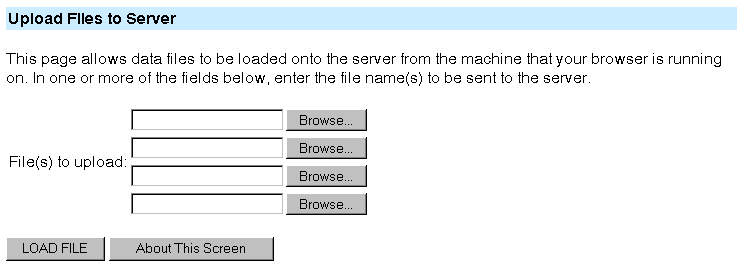
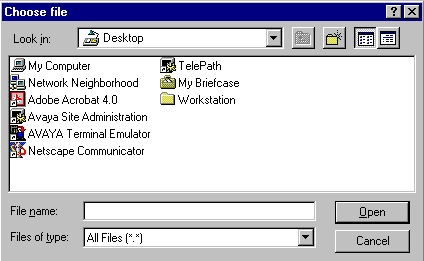
The S8300 displays the Choose File window, which allows you to select files from your laptop.
When the files are successfully transferred, the system displays the status screen.
Install License and Authentication Files (from Your Laptop)
Begin _____________________
The S8300 displays the Install License window.
Figure 19. Install License Window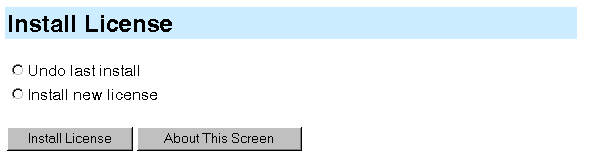
The system tells you the license is installed successfully.
The S8300 displays the Install Avaya Authentication window.
Figure 20. Install Authentication Window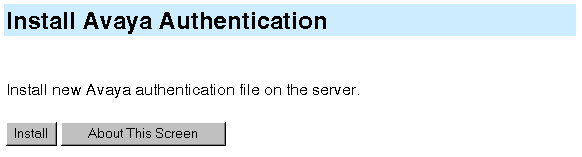
The system tells you the authentication is installed successfully.
Begin _____________________
CAUTION: This procedure saves the official passwords for the customer's system in the MultiVantage software. If you fail to perform this step now, you may be irretrievably locked out of the system later in the installation when the system reboots.
The system displays the message Command successfully completed.
|
|
|