

|
|
|
Although this is a new installation and software already exists on the S8300, there may be new software loads available that you may need to install. Follow the steps in this section to bring the S8300 to the most recent load of software.
Determine Necessary Upgrades to the S8300
Begin _____________________
The S8300 displays the View Software Version screen.
Figure 21. View Software Version Window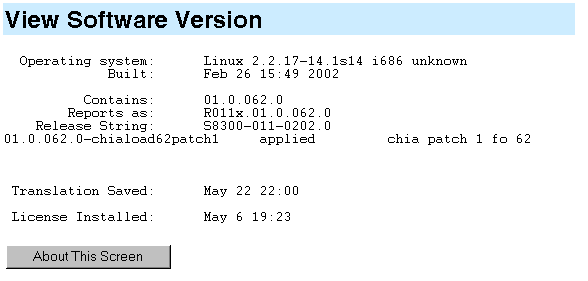
Transfer Files from a CD or Hard Drive of Laptop
Begin _____________________
Normally, during a new installation, you will have the CD-ROM that contains the latest software to install. The latest software for the S8300 has a file name that reflects the most recent load of software and a .tar extension (for example only, S8300-11.2-0209.3.tar). This .tar file will also contain the most recent software for the G700 Media Gateway, the various Media Modules, and the Layer 2 Switching Processor. The latest update software for MultiVantage has a file name that reflects the most recent load of software and .tar.gz extension (for example only, 01.0.065.4-0006.tar.gz).
CAUTION: You cannot use the S8300 as a TFTP server for IP Softphone software installations. The customer is responsible for establishing a TFTP server on a PC in the customer's network.
The S8300 displays the Upload Files to Server window.
Figure 22. Upload Files to Server Window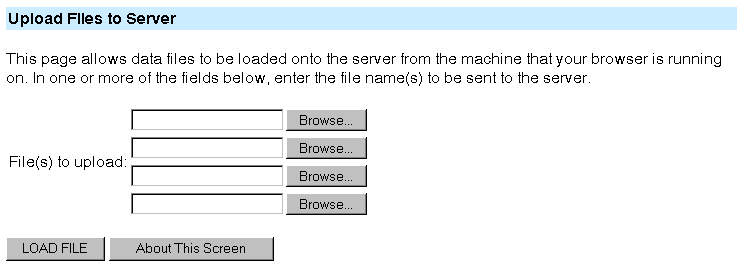
The S8300 displays the Choose File window, which allows you to select files from your laptop.
When the files are successfully transferred, the system displays the status screen.
|
|
|