What is My Avaya Dashboard?
The Avaya Dashboard appears once you have logged in to the Avaya Support Website. From here you can view entitled and product specific content, including Service Requests and Top Solutions.
Below is a breakdown of the components on your Avaya Dashboard:
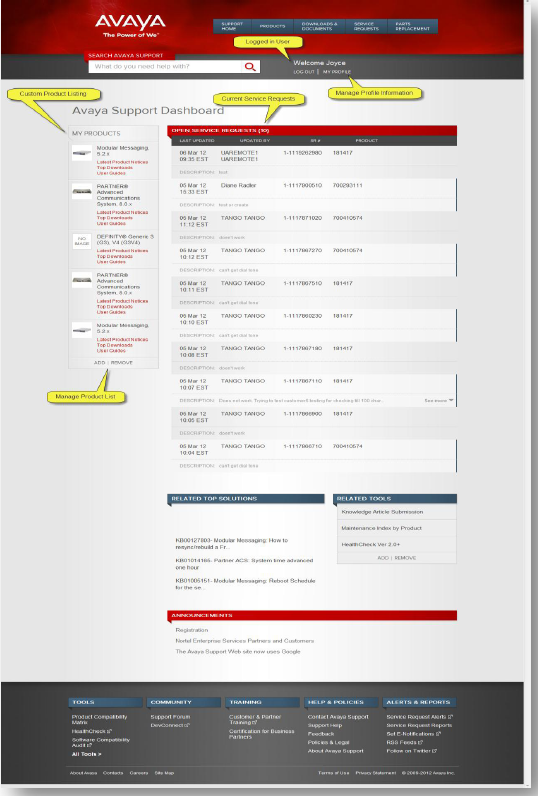
The “User Dashboard” is customized with relevant information associated with your account as well as any products that you setup in the My Products section. The User Dashboard will automatically display once you have logged into the Avaya Support Website.
Key Features of the User Dashboard:
- Open Service Requests
- My Products
- Related Top Solutions
- Related Tools
- Announcements
Open Service Requests
Any open or closed Service Requests that are associated with your account are shown here.
To Access:
- Click anywhere on the line item to take you to the open request.
My Products
Setup a customized list of products. Use the Add or Remove controls to manage your list.
To Access:
- Click the product to go to that Product hub page.
- Click Latest Product Notices, Top Downloads, or User Guides to go to the filtered list of Downloads and Document for the product.
Related Top Solutions
Top Solutions are knowledge-based articles written by Avaya technical experts to provide answers to common questions or reported issues. Related Top Solutions display the top 5 most popular knowledge articles for the first 5 products displayed in My Products.
To Access:
- Hover over any item in the list to view the full article title.
- Click on any item to open the article.
Related Tools
Related tools are a custom list of tools that you need quick access to. You can use the Add or Remove controls to manage your list.
To Access:
- Click on any item to open the tool.
Announcements
The Announcements area shows recent top information from Avaya.
Why can’t I see all tickets associated with my Sold Tos on the Dashboard?
In the Dashboard, you will see your 10 most recently opened or closed Service Requests. These include all Service Requests that have been created by you, or in which you are identified as the Primary Contact. In order to view all associated Service Requests you will need to access the Service Request section on the Support site and use the Advance Filters options, please review the following knowledge base article for instructions.