Reports
The Reports link provides access to the reports that the reporting module generates about the networks monitored by the CNA system. Clicking either Reports or More Reports to reveal the entire list in the information window. This link contains the following items:
Executive Summary--Provides a high-level view of the overall affect of CNA on your network. This report is available in Multi-Path mode.
- Billing--Shows usage and estimated costs for each of your configured links for the month. This report is available in Multi-Path mode.
- Application Performance--Shows how your network performs, based on the measurement statistics that the CNA system gathers.
- Application Delay--Shows information about the delay that your applications experience (in milliseconds).
- Application Traffic--Shows statistics about the applications in your network in bytes per second. This information is for your top applications across all the configured networks.
- Network Availability--Shows the overall availability of all your networks.
- Application Availability--Shows the “nines” availability of the applications in your network.
- Link Availability-- Shows the “nines” availability of your configured links.
- Distribution--Provides charts that show how prefixes are distributed among your edge routers. This report is available in Multi-Path mode.
- Web Speedup--Shows the performance improvement for Web applications.
- Measurements--Shows information on the measurements that the system makes for each prefix on each configured CNA link on all routers.
- Traffic Per Network--Shows information on bit rates and flows on each prefix.
- Traffic Per Specified Network--Shows information on bit rates and flows on each prefix based on defined customers. For more information, see customer-prefix-file command in the CNA Command Reference Guide.
- Traffic Per ASN--Shows information on bit rates and flows on each prefix based on the AS numbers that are seen in your network. This report is available in Multi-Path mode.
- Observed--Shows data that the CNA system observes, as opposed to data that is optimized by the CNA decision-maker process. This report is available in Multi-Path mode.
- Optimized--Provides a qualitative summary of how the CNA decision-maker process evaluates link performance per prefix, as opposed to the quantitative summary in the Observed report. This report is available in Multi-Path mode.
- Diagnostics--Shows detailed information on the inner workings of the CNA system.
- Diagnostics (Brief)--Shows a less detailed version of the Diagnostics report.
- Cell--Shows information for each cell in the CNA system.
- Edge--Shows information for each edge device in the CNA system.
- Networks Not Rescued--Shows information on the number of networks that are experiencing an outage that the CNA system was unable to rescue.
The Reports link provides access to predefined reports that are automatically generated. When you click a report, the system displays the contents in the information window.
Figure 10: Information window: Reports
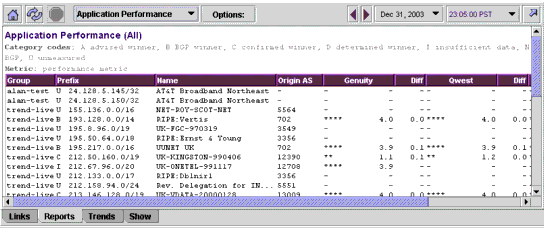
The following controls are shown in the Report window when you view an available report Table 4.
Table 4: Report control bar descriptions
| Control icon |
Description |
|
|
Provides the complete list of available reports. This list the same list that you see when you click the Reports quick link or the Reports tab.
|
|
|
Reloads the current report.
|
|
|
Stops the current action in progress.
|
|
|
Provides quick access to all Reports.
|
|
|
Opens the Report Selection dialog box ( Figure 11).
|
|
|
Provides a quick way to navigate between a sequence of reports. Most reports are generated on a regular basis, such as hourly or daily. Use this control to step through the reports in sequence without the need to select each report independently.
|
|
|
Provides a list from which you can select the day and the month of a report.
|
|
|
Provides a list from which you can select the time of a report.
|
|
|
Opens the current report in a separate window.
|
|
Click Options to open the Report Selection dialog box. Use the Report Selection controls to select the specific date and time frame that you want the report to display. You can also use the arrow buttons on the Reports Control Bar to move forward or backward in time. Click the left arrow to replace the currently displayed report with the earlier report of the same kind. Click the right arrow to replace the currently displayed report with the next later report.
Report time stamps include the time zone that was in effect on the CNA system when the report was created. Changing time zones with the timezone command in the CLI does not affect saved reports.
Figure 11: Report Selection dialog box
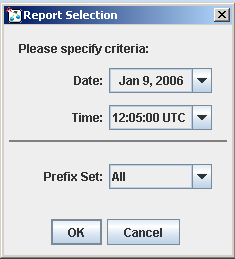
Some reports also require you to select a router. Others reports, such as the Executive Summary or Distribution reports, include other selection criteria. Such criteria might be, for example, weighted versus unweighted data or a qualifier that defines the system set of prefixes.
When you select one of the reports, the system displays the report in the information window.
You can configure your CNA system to routinely send reports to a list of recipients by way of e-mail. For more information, see the email command in the Command Line Reference guide.
Settings in the Report Selection dialog box persists between uses during the same session. That is, if you set a date, a time, and a router for one type of report, and then select a different report type from the list (the menu continues to be displayed in the top margin), the Report Selection dialog box retains the previous settings. Thus you can quickly view several reports with the same date, time, and router criteria.
For an explanation of each of the reports that are available, see Chapter 2: Reports in the CNA Reporting Guide.