

|
|
|
To load new firmware for the G700 Media Gateway and the Media Modules, you will first need to transfer the new firmware files from the S8300 TFTP server to the G700 Media Gateway. Consult the Release Letter for the most recent information and instructions for upgraded firmware.
CAUTION: You cannot use the S8300 as a TFTP server for IP Softphone software installations. The customer is responsible for establishing a TFTP server on a PC in the customer's network.
Verify That the S8300 tftpboot Directory Has the Right Firmware Versions
Begin _____________________
The .tar S8300 software you installed on the S8300 also included firmware for the G700 Media Gateway. This firmware should be stored in the /tftpboot directory of the S8300. You should check this directory to make sure the firmware version match those listed in the Release Letter.
Note: Leave the login session up with the G700 Media Gateway while you check the S8300 for available firmware.
Use the following legend to help understand which files are for the different G700 Media Gateway components.
Note: You are unlikely to need all of the files. If the customer does not have a particular Media Module, you will not need to load the file.
Install New Firmware on the P330 Stack Processor (Layer 2 Switching Processor)
Begin _____________________
The P330-1(configure)# prompt appears.
Note: If necessary, open the HyperTerminal window, and login to the P330 Stack Processor (Layer 2 Switching Processor) command line interface.
where
<file> is the image file with format and vintage number similar to viisa3_8_2.exe,
<ew_file> is an embedded web application file with format similar to p330Tweb.3.8.6.exe,
<tftp_server_ip_address> is the ip address of the S8300, and
<Module#> is the number, 1 through 10, of the media gateway in the stack. If there is only one G700 Media Gateway, the number is 1.
Install New Firmware on the G700 Media Gateway Processor
Begin _____________________
to transfer the mgp image from the tftp server to the G700, where
<bank> is the bank that is not Active Now.
<filename> will begin with mgp and will be similar to a name like mgp_230_0.bin. <tftp_server_ip_address> is the ip address of the S8300. See the following example:
copy tftp mgp-image a mgp_230_0.bin 195.123.49.54.
The screen will show the progress.
Figure 50. List Configuration for G700 Media Gateway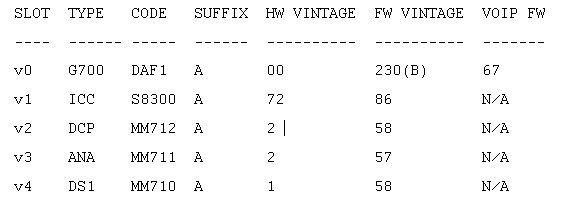
A system prompt asks to confirm the reset.
The G700 Media Gateway processor will reset. The LEDs on the G700 Media Gateway and the Media Modules will flash. These elements will each conduct a series of self-tests. When the LEDs on the Media Modules are extinguished and the active status LEDs on the G700 Media Gateway are on, the reset is complete.
Install New Firmware on the Media Modules
Begin _____________________
where
<slot #> is the slot of the specific media module as identified when you performed Determine Necessary Firmware to Install on the G700,
<filename mm> is the media module software in a format such mm712v58.fdl, and <tftp_server_ip_address> is the ip address of the S8300.
Two or three minutes will be required for most upgrades. The VoIP Media Module upgrade takes approximately 5 minutes. Screen messages indicate when the transfer is complete.
Begin _____________________
Set SNMP traps on the G700 Media Gateway so that the S8300 MultiVantage Maintenance software can detect problems with the G700 Media Gateway's network traffic.
At the MG-???-1(configure)# prompt, type set snmp trap <primary_controller_IP_address>
where <primary_controller_IP_address> is the IP address of the S8300 Media Server or the S8700 Media Server. If the S8300 acts as a Local Survivable Processor, the address is for an S8700 server. The address is not the S8300 TFTP address.
Set up the Controller List for the G700 Media Gateway
Begin _____________________
To complete the configuration of the G700 Media Gateway, you will establish a list of controllers. This list begins with the IP address of the primary controller. In the event that the G700 Media Gateway loses contact with its primary controller, it will seek to register with the other controllers on this list. These other controllers are the S8300 Media Servers configured as Local Survivable Processors (LSPs).
Up to four IP addresses separated by commas can be entered to form the controller list.
Note: After you set up a controller list for the G700 Media Gateway, the G700 will reset every 30 minutes in order to contact the controller. This is normal operation, and does not indicate a problem.
A system prompt asks to confirm the reset.
The G700 Media Gateway processor will reset. The LEDs on the G700 Media Gateway and the Media Modules will flash. These elements will each conduct a series of self-tests. When the LEDs on the Media Modules are extinguished and the active status LEDs on the G700 Media Gateway are on, the reset is complete.
The system ultimately returns you to the P330-1 (configure) prompt.
Note: Because the G700 media gateway has registered with its primary controller, the prompt name has changed to MG-001-1.
Figure 51. Show Call Controller Status Screen
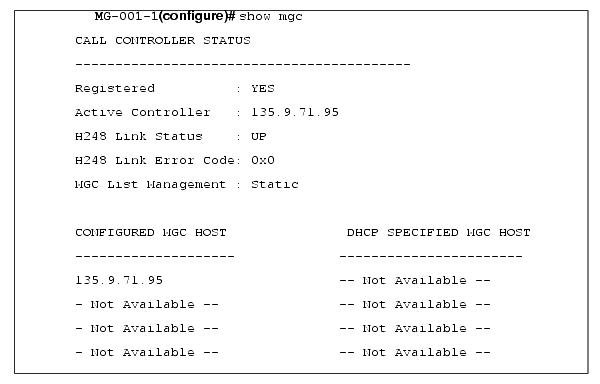
The Gateway will have registered with the S8300, if present. If the S8300 or S8700 is running and has been administered properly, the Registered field says YES and the H248 Link Status says UP. If the server is not running, the Registered field says NO and the H248 Link Status says DOWN.
Begin _____________________
You must set the time that the G700 searches, in the event of a network problem, for primary controllers (for example, additional CLAN connections) with which to register. After this search time has elapsed, the G700 will search for an LSP with which to register. You must also set the total time the G700 searches for either a primary controller and an LSP, after which the G700 resets. And finally, you must define how many primary controllers, from 1 to 4, are in the controller list you just defined.
where <search-time> is the time in minutes that the G700 searches for a primary controller before looking for an LSP. The range is from 1 to 60.
where <search-time> is the time in seconds that the G700 searches for both primary controllers or LSP. The range is from 1 to 60.
where <#_of_primary> is the number of primary controllers in the controller list. The range is from 1 to 4.
Configure Other G700 Media Gateways (Stack Configuration)
Begin _____________________
If the customer has multiple G700 Media Gateways connected in an IP stack, you can stay connected to the P330 console port of the master G700/L2 Processor and "session" over from the master Layer 2 Switching Processor to the next G700 in the stack. You should have plugged your laptop into the stack master L2 Processor, which you can identify by the LED panel on the upper left of each G700 or Avaya P330 device in the stack as follows:
The G700 and Avaya P330 at the bottom of the stack is module number 1, the next module up is number 2,. and so on. However, the stack master can be any module in the stack, depending on the actual model, the vintage firmware it runs, and whether the S8300 is inserted into it.
Note: You do not need to configure the other L2 Processors in the stack. These will use the IP address and IP route of the master Layer 2 Switching Processor. However, you will need to check firmware on all devices of the other G700s in the stack, including the G700s themselves, and update the firmware as required.
You may also use the "session stack" command to access extra standalone Avaya P330 device processors in the stack (those that are not part of a G700 unit).
The P330 configure prompt appears.
<mod_num> is the next L2 Processor in the stack. If you are currently logged in to the master stack processor, <mod_num> would be 2, for the second G700/L2 Processor in the stack.
Configure Other G700 Media Gateways (Remote, No Stack Configuration)
Begin _____________________
If additional G700 Media Gateways are supported in the configuration, but they are not attached as a stack, then you must configure each G700, with all of its devices, including the Avaya P330 device processors. Additionally, you must check firmware and update the firmware as required.
|
|
|