Prepare to Configure the G700 Media Gateway
Conduct the following procedure in order to compare software versions running on the G700/Media Modules with the Release Letter. If the versions do not match, new firmware for those components is necessary.
Review Physical Access Methods
Begin _____________________
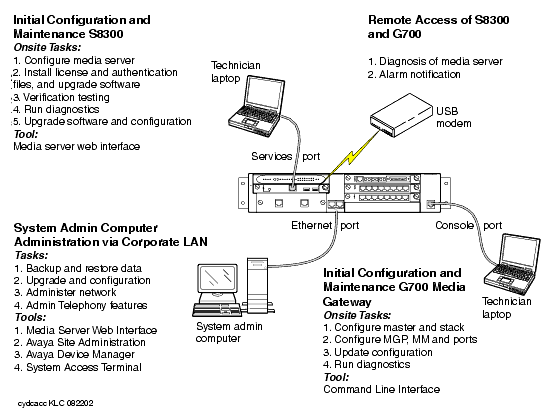
- Check Figure 64 for the location of the G700 Serial Port.
- Check Figure 64 for the location of the Ethernet ports. You will need to connect one of the ports to the customer's LAN for loading the latest software.
Figure 64. Summary of S8300 and G700 access methods and tasks
Connect Your Laptop to the G700 Serial Port
Begin _____________________
To connect a laptop directly to the serial port on the G700 Media Gateway:
- For a stacked configuration: locate the device that contains the master controller for the stack. Check the LED panel on the upper left of each G700 or P330 device in the stack as follows:
- G700 Media Gateway: a lit MSTR LED indicates that this unit is the stack master.
- P330 device: a lit SYS LED indicates that this unit is the stack master.
- Use the RS-232 serial cable and DB-9 adapter cable provided with the G700 Media Gateway.
- Attach one end of the RS-232 cable to the RJ-45 jack on the front of the unit that is the stack master. The serial port is on the lower right side of the chassis.
- On a G700, this serial port is labeled Console.
- The name of the serial port varies on P330 devices, but it is located on the lower right.
- Plug the other end of the RS-232 cable into the RJ-45 jack on the DB-9 adapter cable.
- Connect the other end of the DB-9 adapter cable to the 9-pin serial port on your laptop.
- Use a serial-connection program such as HyperTerminal to access the P330 stack processor.
Log in to the Avaya P330 (Layer 2 Switching Processor) Command Line Interface�
Begin _____________________
- Launch Windows� HyperTerminal or any other terminal emulation program.
Note: For most Windows-based PCs, you access the HyperTerminal program from the Start menu by selecting Programs, then Accessories.
- Choose Call - Connect or the appropriate call command for your terminal emulation program.
- Login at the Welcome to Avaya P330 screen.
Login: xxx from the planning documentation
Password: xxx from the planning documentation
You are now logged-in at the Supervisor level. The prompt appears as P330-1(super)#. In order to use the commands necessary to configure the P330 Stack Processor, you must reset to the Configure level.
- Type configure
The prompt appears as P330-1(configure)#.
End _______________________
Note:
To check the syntax of a command in the command line interface, type as much of the command as you know followed by help. For example:
P330-1(configure)#> set help
you will be given the current list of set commands available. If you type:
P330-1(configure)#> set interface help
you will be given a much more restricted list of command possibilities that address the possible interfaces to be set.
For a complete list of command line interface commands, refer to the "Avaya P330 User's Guide".
Determine Necessary Firmware to Install on the G700
Begin _____________________
The first steps determine if new firmware for the P330 Stack Processor is necessary.
- Login to the Avaya P330 command line interface.
- At the P330-1(super)# prompt, type configure.
- At the P330-1(configure)# prompt, type dir.
The list of software appears
Figure 65. Directory List for P300 Processor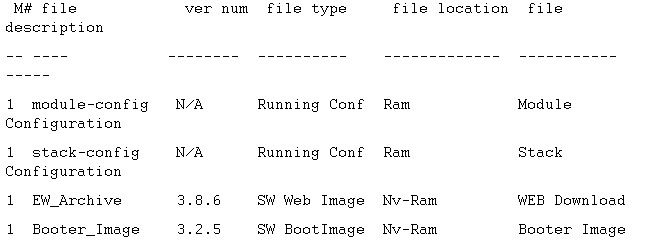
- Check the version number of the EW_Archive file to see if it matches the Release Letter. If not, you must upgrade the P330 Stack Processor.
- At the P330-1(configure)# prompt, type show image version
The list of software appears.
Figure 66. Show Image Version List for P330 Processor
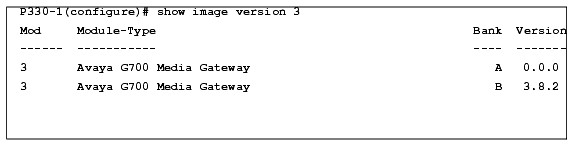
Check the version number of the stack software image file to see if it matches the Release Letter. If not, you must upgrade the P330 Stack Processor.
The next steps determine if new firmware is required for the G700 Media Gateway Processor (MGP), the VoIP Module, and the installed Media Modules.
- At the P330-1(configure)# prompt, type session mgp
- At the MG-???-1(super)# prompt, type configure
- At the MG-???-1(configure)# prompt, type show mg list_config
The list of software appears.
Figure 67. Configuration List for G700 Media Gateway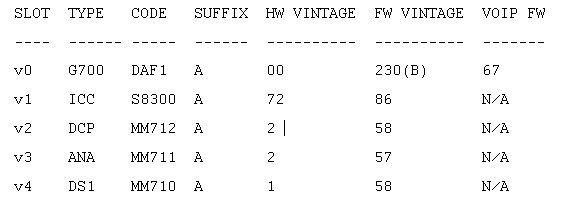
- Refer to the output of step 8 to check the FW vintage number of the G700. In the TYPE column, find G700, then check the matching field in the FW VINTAGE column to see if it matches the Release Letter. If not, you must install new firmware on the G700 Media Gateway. Also check if the release number in the FW VINTAGE column contains an A or B to indicate the software bank. If the list shows B, you will upgrade A. If the list shows A, you will upgrade B.
- Refer to the VOIP FW column and row for slot v0 to see if the number matches the VoIP firmware identified in the Release Letter. If not, you must also upgrade the G700 Media Gateway motherboard VoIP module.
- Check the FW VINTAGE column for vintages of each of the installed Media Modules: MM710, MM711, MM712, MM720, and/or MM760 to see if they match the FW vintages in the Release Letter. If not, you must upgrade them, as well.
End _______________________

