Snapshot Reports Available
To view a report, click on it in the Quick Links window (you may have to view “More Reports...” to get to it) or select it from the Reports menu bar at the top of the control panel. The tabs at the bottom of the information window provide still another way to access reports - use whatever method is easiest for you.
When the report opens in the information window, you can use the controls described in the previous chapter to select a date/timestamp and other report-specific criteria.
previous and next arrowhead buttons at the bottom of the window to move forward and backward through the list of similar reports, according to timestamp.
The following reports are available through the Reports entry in the Quick Links window (you can also get to it from Reports in the menu bar):
	Executive Summary

	Billing

	Application Delay

	Application Performance

	Application Traffic

	Network Availability

	Application Availability

	Link Availability

	Distribution

	Web Speedup

	Measurements

	Traffic Per Network

	Traffic Per Specified Network

	Traffic Per Network

	Observed

	Optimized

	Diagnostics

	Diagnostics (Brief)
The Executive Summary item on the Snapshot Selection list opens a report titled Executive Summary. You can view a weighted version be selecting the Weighted Values checkbox in the Snapshot Selection dialog.
This report provides a high-level overview of the improvements made to your network by the CNA system:
- Number of Nines--shows the total number of prefixes used in the calculations
- Number of Bad Minutes--shows the percentage of all sufficiently measured prefixes which meet the conditions for an improvable prefix as defined by the
- the percentage of blackout prefixes that are improvable may be less than 100% if the CNA system does not know of a route to the prefix. See Prefix Categories in Chapter 3: Adaptive Path Control of the CNA Adaptive Path Controller Guide.
The report is divided into two parts, plus a key which defines terms.
When you select Billing from the list of snapshot reports displayed in the Quick Links window, a report titled Billing will open in the information window at the bottom of the control panel.
This report provides an estimate of the bill you will receive from each of your service providers, for the time span in the Period Covered column.
See Figure 6.
Figure 6: Billing snapshot report
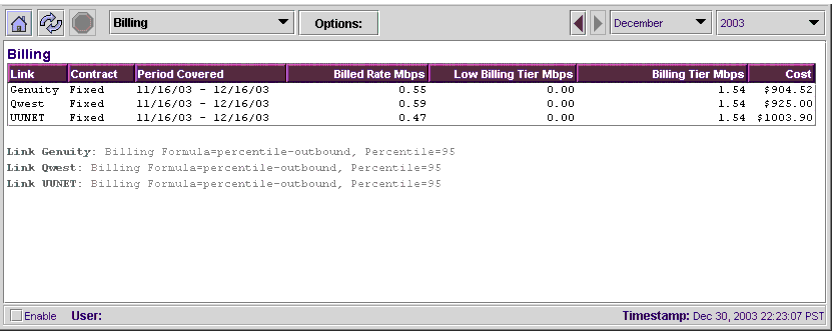
Billing reports are generated internally at midnight preceding the first day of the month, with an entry for each link for which there is billing data in the CNA system’s running configuration. Billing reports cover the period of time beginning with the most recently passed billing cycle start date through the next billing cycle start date.
Until the report period ends, the Period Covered cell will read incomplete for each link.
If you add a link to the CNA configuration prior to the service provider’s billing cycle start date, the link will be added to the current report immediately. If you add a link to the configuration after its billing cycle start date, it will not appear until the next report, the one generated on the first day of the following month.
If no billing reports are available, the month and year menus will say None Available. You cannot open an empty report.
The billing estimate is based on usage data obtained by polling your edge routers, and on contract terms which you specified in the CNA configuration. For information about usage polling, see Chapter 4: Polling Routers in the CNA Advanced Monitoring Guide.
The Billing report consists of a table with a row for each configured link.
Columns in the report are:
- Link--your service provider links, listed by configured link name
- Contract--type of contract (either burstable or fixed-rate); determined by how many instances of the usage-reporting cost command are present in the configuration for the link
- Period Covered--time span of the billing estimate, based on month and year of snapshot plus the day and hour specified by the usage-reporting billing-period command; if the snapshot date represents the current month and the end of the billing period has not yet been reached, the Period Covered span will be shown as incomplete
- Billed Rate Mbps--total usage, in megabits per second (mbps), for the link during the period covered, calculated using your configured billing and percentile values plus usage data obtained by polling the SNMP agent on your edge routers
- Low Billing Tier--the minimum usage, in mbps, covered by your contract; determined by the smallest bandwidth value configured for the link by the usage-reporting cost command
- Billing Tier--shows, by bandwidth value, which configured rate in a burstable contract was used to calculate the bill (if usage exceeds the configured bandwidth of a tier, the next higher configured bandwidth value is displayed)
- Cost--estimated cost of service for the month covered by the snapshot report (from the beginning of the billing period to the current date, if the month is not yet complete); figure represents a whole number of dollars
NOTE: You can get more detailed billing information by clicking on the Billing item (use either the Show tab in the information window or Show Commands in the Quick Links menu) This is the same as the show link billing command in the CLI. For an explanation of the output, see Show Command Output in Chapter 4: Polling Routers of the CNA Advanced Monitoring Guide.
When you select Application Delay from the list of snapshot reports displayed in the Quick Links window, a report titled Application Delay (All) will open in the information window at the bottom of the control panel. This report shows how your network is performing, based on the measurement statistics gathered by CNA.
See Figure 7.
Figure 7: Application Delay report
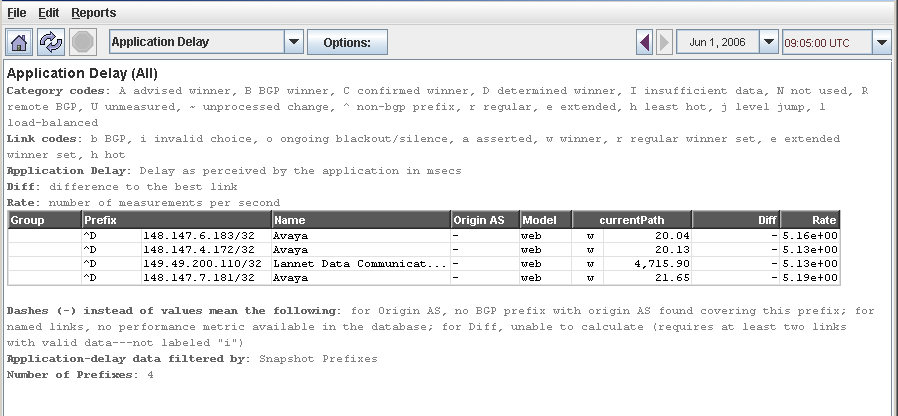
The Application Delay report consists of a table with a row for each prefix.
Columns in the report are as follows:
- Group--the group name to which the prefix has been assigned. In Figure 7, the prefix named IANA-BBLK-RESERVED has been assigned to the surfers group. (See report group in the CNA Command Reference Guide). If the prefix has not been assigned to a group, the Group column will be blank for the prefix.
- Prefix--the first of the two columns that are displayed under the column heading Prefix shows the CNA category; the second column shows the prefix address in CIDR format (a.b.c.d/n); or its alias, if assigned. (For information about categories, see Prefixes in Chapter 3: Adaptive Path Control of the CNA Adaptive Path Controller Guide. For information about aliases, see report prefix-alias in the CNA Command Reference Guide.)
- Name--the name, if any, given to the prefix.
- Origin AS--autonomous system (AS) number of the network in which the prefix is located; a dash instead of a number indicates a user-defined prefix (CNA did not learn about it from a BGP peering; it was added to the configuration with the set-decision-policy command).
- <link name>--the name of the service provider link appears in the head of these two-part columns, which tell you the status of the link (for the prefix) and the application delay as perceived by the application in msecs. The first half of the column shows the link codes as follows: b BGP, i invalid choice, o outage detected, a asserted, w winner, r regular winner set, e extended winner set, h hot. The second half of the column shows the application delay. For more information on application delay, see Chapter 6: Decision Policies and Application Models in the CNA Basic Monitoring Guide.
- Diff--shows the difference in application delay (in msec) between this service provider link and the best performing link (lower number is better).
- Rate--measurement rate in measurements per second.
Application Performance Report
When you select Application Performance from the list of snapshot reports displayed in the Quick Links window, a report titled Application Performance (All) will open in the information window at the bottom of the control panel. This report shows how your network is performing, based on the measurement statistics gathered by CNA.
In addition to date and time, you can use the options dialog to select Blackout for the “Prefix Set” dropdown menu. This will limit the output to those prefixes that are in a blackout condition, as defined in the Executive Summary Report.
See Figure 8.
Figure 8: Application Performance report
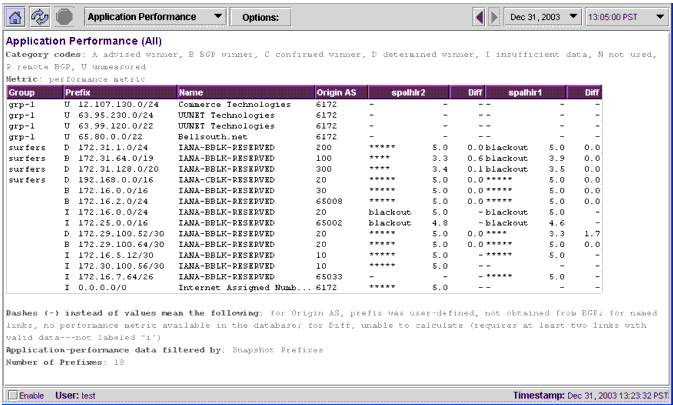
The Application Performance report consists of a table with a row for each prefix.
Columns in the report are as follows:
- Group--the group name to which the prefix has been assigned. In Figure 8, the prefix named IANA-BBLK-RESERVED has been assigned to the surfers group. (See report group in the CNA Command Reference Guide). If the prefix has not been assigned to a group, the Group column will be blank for the prefix.
- Prefix--the first of the two columns that are displayed under the column heading Prefix shows the CNA category; the second column shows the prefix address in CIDR format (a.b.c.d/n); or its alias, if assigned. (For information about categories, see Prefixes in Chapter 3: Adaptive Path Control of the CNA Adaptive Path Controller Guide. For information about aliases, see report prefix-alias in the CNA Command Reference Guide.)
- Origin AS--autonomous system (AS) number of the network in which the prefix is located; a dash instead of a number indicates a user-defined prefix (CNA did not learn about it from a BGP peering; it was added to the configuration with the set-decision-policy command)
- <link name>--the name of the service provider link appears in the head of these two-part columns, which tell you how well each link is performing (this is known as the Quality Metric), and is indicative of the user experience in the given prefix. The first half of the column shows the ‘star’ rating, from ***** (best performance) to * (worst performance), and the second half of the column is a more exact, numerical representation of this rating, in the range from 5.0 (best performance) to 1.0 (worst performance). See Metric in Chapter 3: Adaptive Path Control of the CNA Adaptive Path Controller Guide.
- Diff--shows the difference in performance between this service provider link and the best performing link.
When you select Link Availability from the Reports list, it will be displayed in the information window of the control panel. You can use the options dialog to select the date and time for this snapshot report.
This report shows you the outages that have occurred on your network, summarized for each link.
Figure 9: Link Availability report
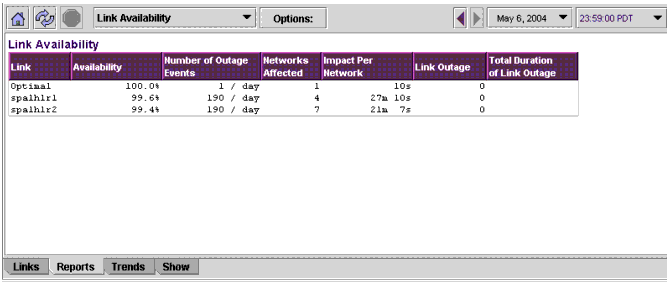
Each row of the table represents a different link.
Column headings are:
- Link--the name of the link
- Number of Outage Events--the number of outage events suffered by the specified link
- Networks Affected--the number of prefixes affected by the outages
- Impact Per Network--the total time of the prefix (aka network) outages per link
- Link Outage--the number of time the link was completely outaged
- Total Duration of Link Outage--the total time that the link was completely outaged
The Distribution item on the Snapshot Selection menu opens a report containing pie charts which show how prefixes are distributed among your edge routers.
You can also specify criteria for the report in the Options dialog. In addition to date and time, you can set the following:
- the router. If your network includes multiple edge routers, you can switch among them by selecting a different router to open a new report.
- which prefixes to show
- all - prefixes in the database (this number could be quite large--100,000 or more; if the number of prefixes that are sufficiently measured is relatively small, the difference between BGP and CNA distributions will not be visible on the charts)
- named - prefixes that have been given aliases in the CNA configuration
- sufficient - prefixes that have been sufficiently measured as defined by the min-required-measurements command
- whether the reports should be weighted (charts show distribution of estimated traffic load) or unweighted (charts show distribution by prefix count)
- which customer to show. This is based on defined customers in the .prefix file, if present. See customer-prefix-file in the CNA Command Reference Guide.
Weighting consists of summing the average measurement rates for all prefixes per link and dividing the pie charts according to the relative sizes of those totals. This may give you a better idea of how traffic is being spread among your service providers, since charts based purely on prefix counts make no distinction between a prefix that carries a lot of traffic and a prefix that is seldom used.
The weighted distribution charts are most useful when the rate of UTT measurements is large, because the charts increase the significance of prefixes which generate more traffic. At low test-measurement rates, the weighting can be distorted since non-customer traffic (DNS health checks and active measurement probes) are included in the weight calculation.
The Prefix Distribution table shows numbers of prefixes or, if you select the Weighted Values checkbox in the Options dialog, percentage of traffic moved.
See Figure 10.
Figure 10: Prefix Distribution report
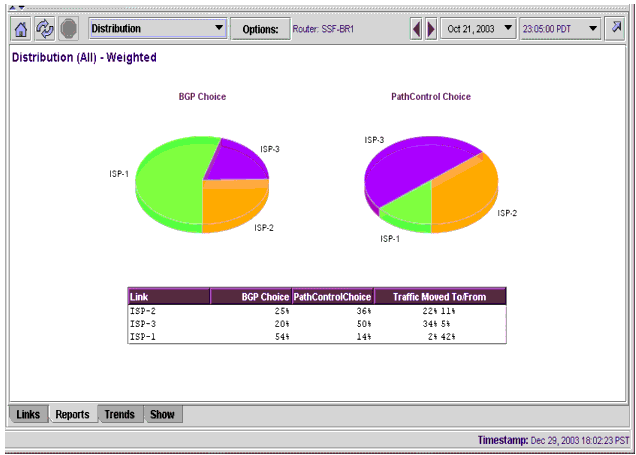
Each of these reports consists of two pie charts and a table.
The pies represent prefix distribution according to BGP route selections, and distribution according to the routes chosen by the CNA system.
The pie representing the CNA choice is based on either the number of routes that have been asserted or how prefixes would be distributed if all of the CNA decision-maker choices were asserted and confirmed by the routers, depending on whether route assert mode has been enabled.
Each slice of the pie represents the percentage of prefixes assigned to a link, or for the weighted report, percentage of traffic moved by the link.
The Prefix Distribution chart shown shows the CNA system distributing prefixes significantly different from what would occur naturally using BGP-selected routes. The ISP represented by the largest segment in the BGP pie (green, 54 percent) has its share of prefixes reduced to 14 percent in the CNA distribution, while the ISP represented by the smallest segment in the BGP pie (blue, 20 percent) had its shares increased to 50 percent of the prefixes in the CNA distribution.
Each whole pie represents all prefixes known to the selected router for which the database contains the minimum number of measurements (as defined by the min-required-measurements command), or the traffic carried by these prefixes, if weighted.
The tables contain one row for each service provider link.
Tables in the Prefix Distribution reports (Figure 11) show numbers of prefixes.
Tables in the Weighted Distribution reports (Figure 12) show percentage of traffic.
Figure 11: Prefix Distribution Table

Figure 12: Weighted Distribution Table

Columns (from left to right in the illustrations) show the following:
- Link--color coded list of links, by name given to the link in the CNA configuration by the neighbor link command
- BGP Choice--number of prefixes or percentage of traffic that would be assigned to that link by BGP
- CNA Choice--number of prefixes or percentage of traffic that would be assigned by the CNA system if all selected routes were implemented
- Prefixes (Traffic) Moved To/From--number of prefixes or percentage of traffic moved on to and off the link because of the CNA selection
The columns which depict numbers of prefixes show two values--a positive number shows how many prefixes were moved onto the link; a negative number shows how many prefixes were moved off the link because of an CNA decision.
NOTE: Reports that contain graphics--including distribution pie charts and trend report graphs--can be sent by e-mail; see the description of the E-mail command in the Menu bar section of Chapter 4: The CNA Web interface. Graphics will be sent in PNG format. If you receive an CNA e-mail with graphics, you can forward it to other recipients, but your mail program must be set to send the message as HTML. If you normally set messages to be sent in text-only format, the images will not be sent.
Traffic Per Network report
When you select Load Per Network from the list of snapshot reports displayed in the Quick Links window, a report titled Load Per Network will open in the information window at the bottom of the control panel. This report shows how your network is performing, based on the measurement statistics gathered by the CNA system.
See Figure 13.
Figure 13: Load per Network report
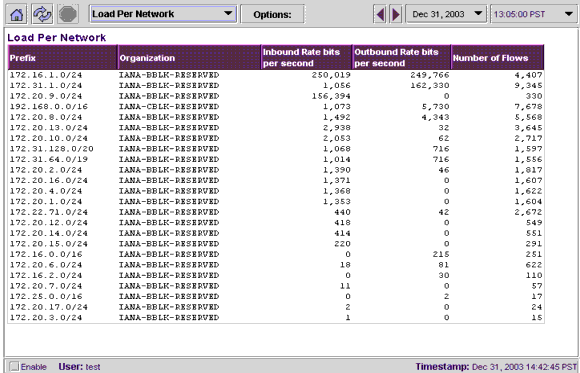
The Load Per Network report consists of a table with a row for each prefix.
Columns in the report are as follows:
- Prefix--the first of the two columns that are displayed under the column heading Prefix shows the CNA category; the second column shows the prefix address in CIDR format (a.b.c.d/n); or its alias, if assigned. (For information about categories, see Prefixes in Chapter 3: Adaptive Path Control of the CNA Adaptive Path Controller Guide. For information about aliases, see report prefix-alias in the CNA Command Reference Guide.)
- Organization--name assigned to this prefix
- Inbound Rate bits per second--bit rate of inbound traffic from this prefix
- Outbound Rate bits per second--bit rate of outbound traffic from this prefix
- Number of Flows--number of flows seen for this prefix
This report consists of a table which itemizes the number of measurements made for each prefix on each configured CNA link on all routers.
In addition to date and time, you can use the options dialog to select Blackout for the “Prefix Set” dropdown menu. This will limit the output to those prefixes that are in a blackout condition, as defined in the Web Speedup snapshot report.
See Figure 14.
Figure 14: Measurements snapshot report
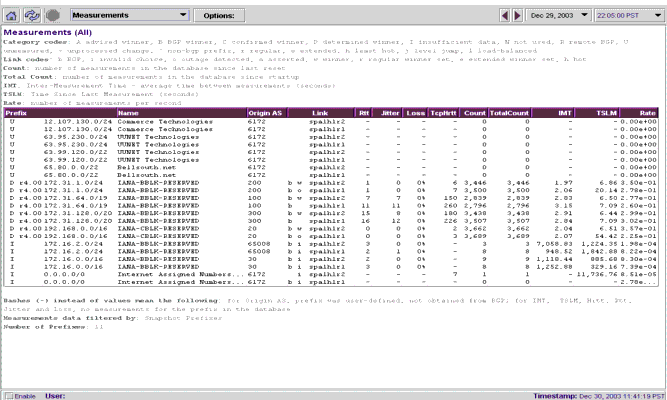
The table columns contain the following data:
- Prefix--the prefix or its alias
- Origin AS--autonomous system (AS) number of the network in which the prefix is located; a dash instead of a number indicates a user-defined prefix (CNA did not learn about it from a BGP peering; it was added to the configuration with the set-decision-policy command)
- Link--the first of the two columns spanned by the heading Link contains a link-status label, if appropriate. Only the i label--for invalid--will be displayed in this column. (For information about link labels, see Prefixes in Chapter 3: Adaptive Path Control of the CNA Adaptive Path Controller Guide.) The second of the two columns contains the link name.
- Rtt--average Round Trip Time (RTT), in milliseconds, for the specified prefix. RTT is available only for prefixes receiving measurements from ICMP or traceprobe active-probing.
- Jitter--average jitter in milliseconds for the specified prefix. Jitter is calculated as the difference between consecutive round trip time (RTT) values. Jitter is available only for prefixes receiving measurements from ICMP or traceprobe active-probing.
- Loss--average loss for a given link associated with the specified prefix. These values are available only for prefixes receiving measurements from ICMP or traceprobe active-probing.
- TcpHrtt--average TCP Handshake Round Trip Time (TCPHRTT), in milliseconds, for the specified prefix. TCPHRTT is available only for prefixes receiving measurements from TCP traceprobe active-probing or single pixel gif measurement.
- Count--the number of measurements sent to the database since the last reset of the CNA decision-maker process (or the last time the clear prefix command was executed).
- Total Count--the number of measurements sent to the database since the CNA system was first started.
- IMT--inter-measurement time (average time in seconds between measurements)
- TSLM--time since last measurement, in seconds.
- Rate--number of measurements per second
The report Observed (All) report contains data that the CNA system has observed, as opposed to data that has been optimized by the CNA decision-maker process (see the Optimized report description.) The observed data report identifies performance rankings--which links have been determined by the decision-maker process to be the best and worst performers--along with raw quantitative performance data (HRTT, measurement count and rate, and AS number of the prefix).
In contrast, the optimized report also identifies performance rankings, but includes qualitative values as well: speed-up factors (how many times faster an CNA choice performs compared to its BGP-selected counterpart), winner-set contents, and traffic-test rates.
In addition to date and time, you can use the options dialog to select Blackout for the “Prefix Set” dropdown menu. This will limit the output to those prefixes that are in a blackout condition, as defined in the Web Speedup snapshot report.
See Figure 15.
Figure 15: Observed Performance snapshot report
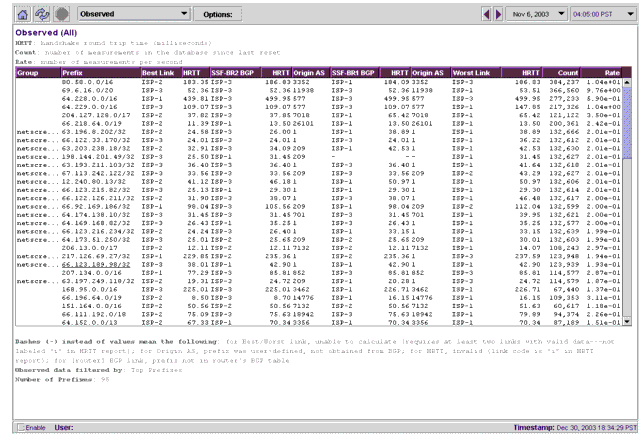
The report consists of a table which compares Handshake Round Trip Time (HRTT) scores of the following categories of links, for each prefix on the CNA system’s most-active list:
- best-performing service-provider link
- worst-performing service-provider link
- BGP-selected link on each edge router
See the section Prefixes (networks) Included in Reports elsewhere in this chapter for a definition of the most-active list.
Each row of the table represents a different prefix.
The table columns contain the following data:
- Group--the group name to which the prefix has been assigned (see report group in the CNA Command Reference Guide); if the prefix has not been assigned to a group, the cell for the prefix will be blank
- Prefix--the prefix address in CIDR format (a.b.c.d/n); or its alias, if assigned (see report prefix-alias in the CNA Command Reference Guide).
- Best Link--name of the link with the best HRTT score for the prefix
- HRTT--weighted average HRTT score for the best-performing link
- <Router> BGP--name of the link that represents the BGP-selected route for this prefix on <Router> (column heading will replace <Router> with either the alias assigned to this router, or the router’s IP address. See neighbor report-alias in the CNA Command Reference Guide); there will be a <Router> BGP/HRTT column pair for each edge router known to the CNA system
- HRTT--weighted average HRTT score for the BGP-selected route
- Origin AS--autonomous system (AS) number of the network in which the prefix is located; a dash instead of a number indicates a user-defined prefix (CNA did not learn about it from a BGP peering; it was added to the configuration with the set-decision-policy command)
- Worst Link--name of the link with the worst HRTT score for the prefix
- HRTT--weighted average HRTT score for the worst-performing link
- Count--total number of traffic-test scores recorded for this prefix, across all links
- Rate--number of measurements per second
NOTE: The key at the bottom of snapshot reports tells you what filter, if any, was used in generating the list. This filter is not user configurable. The number of prefixes in the list is determined by the current limit established by the report prefix-limit command in the device’s configuration.
When you select Optimized from the Reports list, a report titled Optimized All will be displayed in the information window of the control panel.
In addition to date and time, you can use the options dialog to select Blackout for the “Prefix Set” dropdown menu. This will limit the output to those prefixes that are in a blackout condition, as defined in the Web Speedup snapshot report.
When the report opens, a Router selection list will be added to the margin above the report. If your network includes multiple edge routers, you can switch among them by selecting a different router to open a new report. All other selection criteria will remain the same (unless you click on Select Snapshot, which will open the Snapshot Selection dialog to allow you to revise any of the criteria.)
The optimized performance report provides a qualitative summary of how the CNA decision-maker process has evaluated link performance per prefix, as opposed to the quantitative summary presented in the Observed report.
Figure 16: Optimized Performance snapshot report
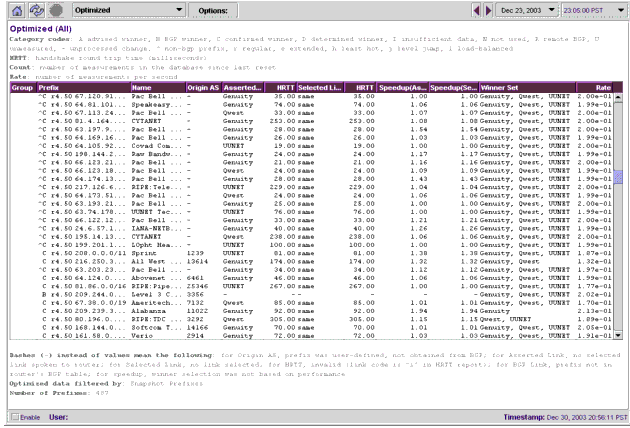
This report consists of a table that compares the pending winner, current winner, and BGP-selected link, for each prefix on the most-active list, on the specified router.
Each row of the table represents a different prefix.
Column headings are:
- Group--the group name to which the prefix has been assigned (see report group in the CNA Command Reference Guide); if the prefix has not been assigned to a group, the cell for the prefix will be blank
- Prefix--the prefix address in CIDR format (a.b.c.d/n); or its alias, if assigned (see report prefix-alias in the CNA Command Reference Guide)
- Origin AS--autonomous system (AS) number of the network in which the prefix is located; a dash instead of a number indicates a user-defined prefix (CNA did not learn about it from a BGP peering; it was added to the configuration with the set-decision-policy command)
- Asserted Link--identifies the currently asserted winner
- HRTT--weighted average HRTT score for the CNA Link
- Selected Link--identifies the link which the CNA system currently considers to be the performance winner (though it may not have been asserted yet, because it is still working its way up in the queue); if the winner is also the asserted CNA link, the column entry will be same
- HRTT--weighted average HRTT score for the Winner Link
- Speed Up (Asserted)--number of times faster CNA Link is over BGP Link (the value shown in this column is the BGP Link’s HRTT divided by the Performance Link’s HRTT)
- Speed Up (Selected)--number of times faster Winner Link performance is over BGP Link (the value shown in this column is the BGP Link’s HRTT divided by the Winner Link’s HRTT)
- Winner Set--a list of links that make up the CNA system’s calculated winner set (see winner-set-width in the CNA Command Reference Guide).
- Rate--average number of measurements per second, adjusted to suppress momentary surges in the seconds before the database snapshot is made (such surges could skew data for low-activity prefixes that record a burst of measurements just before the report is generated)
The Diagnostics report represents a consolidation of output of several individual show commands giving you a summary snapshot of the state of the CNA system in a single report.
The report includes the output from the following show commands (listed in the order in which they appear in the report):
- show statistics dmaker
- show statistics edgestats
- show statistics am-measurer
- show running-config
- show link
See Figure 17.
Figure 17: Diagnostics report
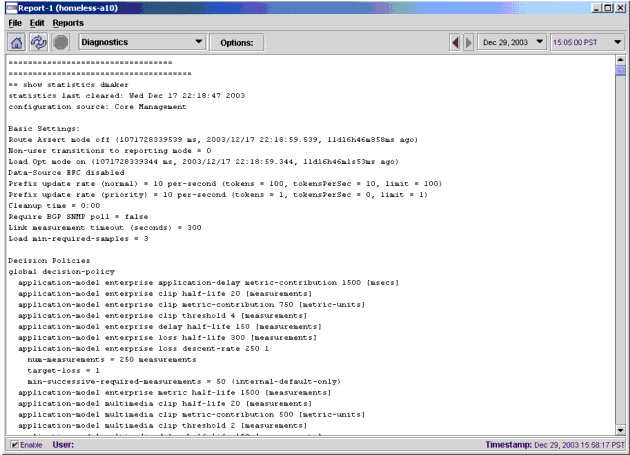
This is a shortened form of the Diagnostics report above.
Rescued Networks (available from the Graphs Panel and the Show menu)
When you select Rescued Networks from the Reports list, it will be displayed in the information window of the control panel. You can use the options dialog to select the date and time for this snapshot report.
The Rescued Networks report shows you the outages for each prefix on your network.
Figure 18: Rescued Networks report
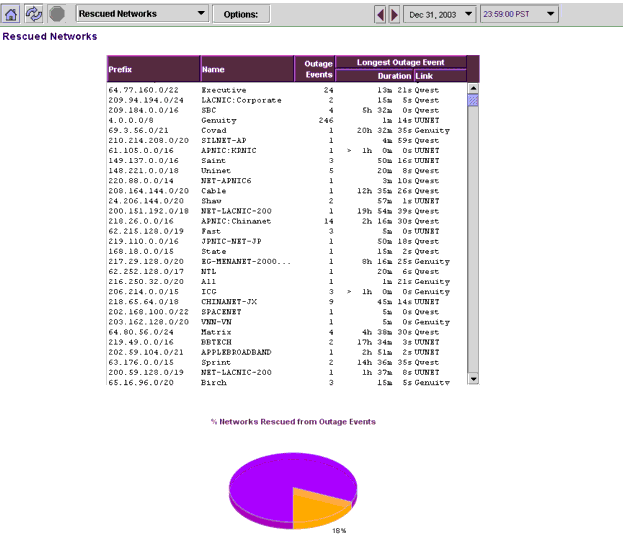
Each row of the table represents a different prefix.
Column headings are:
- Prefix--the prefix address in CIDR format (a.b.c.d/n); or its alias, if assigned (see report prefix-alias in the CNA Command Reference Guide).
- Name--the name of the organization associated with the prefix
- Outage Events--shows the number of outage events suffered by the specified prefix
- Longest Outage Event--this two-part column shows the duration of the longest outage for the specified prefix and the link on which it occurred
The Web Speedup item on the Snapshot Selection list opens a report titled Web Speedup. You can view a weighted version by selecting the Weighted Values checkbox in the Snapshot Selection dialog.
This report provides a high-level overview of the improvements made to Web applications on your network by the CNA system:
- Number of Prefixes--shows the total number of prefixes used in the calculations
- Percent Improvable--shows the percentage of all sufficiently measured prefixes which meet the conditions for an improvable prefix as defined by the web-speedup improvable min-hrtt-saving and web-speedup improvable min-percent-improvement commands
- Percent Improvement--shows the average speedup, as a percentage, of all the prefixes that were improved over BGP by an CNA route assertion (since actual comparisons cannot be made between an CNA-asserted route and a BGP route with an infinite HRTT, the percentage of improvement will always be shown as > 1000 for improvable prefixes in the Blackout column)
- Seconds Saved--shows a range of seconds estimated to have been saved in the delivery of a web page to an end user, based on the range of HTTP turns per page defined by the web-speedup http-turns command (actual savings within the range would be dependent on the number of turns in an individual page)
- since actual performance comparisons cannot be made between an CNA-asserted route and a BGP route that is not delivering any web pages, the Seconds Saved range for prefixes in the Blackout column is shown as being greater than an arbitrary three seconds per turn
The report is divided into two parts, plus a key which defines terms.
The first part of the report, titled Improvement--All, summarizes improvements over all prefixes that have met the CNA system’s sufficiently measured requirements (see the min-required-measurements command).
The second part of the report, titled Improvement--Poorly Served End Users, provides the same information for three subsets of prefixes.
The Poor Performance and Very Poor Performance columns calculate the numbers and percentages for those prefixes that meet the conditions defined by at least one of the web-speedup min-bgp-hrtt and web-speedup worst-bgp-hrtt-percent commands, while the Prefix Blackouts column calculates similar numbers and percentages for those prefixes that were unreachable through their natural BGP routes.
The Poor column is cumulative. That is, the total number of prefixes categorized as poor performers includes the number categorized as very poor performers.
The Very Poor column is not cumulative. The number of prefixes categorized as very poor performers does not include prefixes in the Prefix Blackouts column.

