Custom Trend Graph Types
To create custom graphs of your own design, click the Create button in the trend-list window. The Trend Definition dialog will open.
A report consists of one or more graphs; these graphs can be constructed out of the following information types (selected from the Type drop-down list in the Trend Definition dialog):
Bandwidth

Billing

Customer

Customer Link

Engine

Group

Group Link

Link

Medic

CNA

Prefix

Prefix-Link

Router
The Bandwidth type of graph will show data about link usage obtained from the SNMP agent on the edge router.
Datapoints for these graphs are obtained at the interval specified in the CNA configuration by the collection-rate parameter of the polling usage interval command. You must have first enabled link monitoring (see Chapter 4: Polling Routers in the CNA Advanced Monitoring Guide).
The number of datapoints available for generating Bandwidth reports is determined by the link-usage family of trend sizes.
You can graph samples of inbound, outbound, maximum, and average data collected at either the collection rate, or the billing rate, as specified by the polling usage interval command.
Using the Data dropdown menu you can select the following items to graph:
- Collection Rate - Inbound--graphs incoming bytes per second over the selected link collected at the rate specified by the collection-rate argument of the polling usage interval command
- Collection Rate - Outbound--graphs outgoing bytes per second over the selected link collected at the rate specified by the collection-rate argument of the polling usage interval command
- Billing Rate - Inbound--graphs incoming bytes per second over the selected link collected at the rate specified by the billing-rate argument of the polling usage interval command
- Billing Rate - Outbound--graphs outgoing bytes per second over the selected link collected at the rate specified by the billing-rate argument of the polling usage interval command
Use the Function menu choose between the Average, Maximum, or Minimum functions to be applied when the computed (as opposed to the raw data) is available (see Data Usage for more information on raw data); these functions are not needed when the raw data is in the database. Note: At the bottom of the graphs you will see “Avg”, “Min”, and “Max”; these denote values computed from the points displayed on the current graph and should not be confused with their namesakes on the Function menu.
- Average - results in a plot of the trended average for each time interval
- Maximum - results in a plot of the maximum values for each time interval
- Minimum - results in a plot of the minimum values for each time interval
For additional information, see Polling Too Frequently in Chapter 4: Polling Routers of the CNA Advanced Monitoring Guide.
The Billing type of graph will show usage and estimated costs for each of your configured links for the month. You must have previously enabled SNMP polling of your edge routers and added usage/contract data for each link to your CNA configuration, and at least one billing start date must have passed since the configuration data was entered. (For information about polling intervals, see Enable Polling in Chapter 4: Polling Routers of the CNA Advanced Monitoring Guide.)
The following data items for Billing graphs is calculated once a month based on user-defined figures obtained from the CNA configuration:
- Billing Tier--graphs a link’s position at the end of the billing period in a multi-tiered contract based on the tiering structure defined in the CNA configuration by the usage-reporting cost command
- Billed Rate--plotline represents the usage rate at which the service provider should bill you for the month, according to CNA calculations
- Low BillingTier--graphs the billing tier just below the current billing tier, as calculated using the samples for the time period covered.
- Maximum Sample--plotline represents the single largest sample obtained during the billing period
- Cost - Monthly--plots the monthly contracted cost of service based on the dollars parameter of the usage-reporting cost command
The following data items for billing graphs are calculated at the billing-rate (see polling usage interval in the CNA Command Reference Guide) based on user-defined figures obtained from the CNA configuration:
- Cost - Projected--plots the projected cost of service based on the activity thus far, in the current month.
- Cost - Minimum--plots the minimum cost of service incurred thus far, in the current month.
- Bandwidth - Calculated--graphs usage obtained from the router’s SNMP agent at the interval specified by the billing-rate parameter of the polling usage interval command in the CNA configuration
- Bandwidth - Projected--graphs the projected usage for the month, based on data obtained from the router’s SNMP agent at the interval specified by the billing-rate parameter of the polling usage interval command in the CNA configuration
- Bandwidth - Minimum--graphs minimum usage incurred thus far, in the current billing period.
The plotline drawn by the Billed Rate data type represents a single datapoint calculated from the data obtained from the router’s SNMP agent at the interval specified by the billing-rate parameter of the polling usage interval command. For information about how this datapoint is calculated, see Percentile in Chapter 4: Polling Routers of the CNA Advanced Monitoring Guide.
The Billing graphs should span whole months that coincide with your billing cycle. They are not intended to display progression during the current month.
The CNA link monitor process stores link-usage data in several database files:
- one file stores data collected at the interval specified in the CNA configuration by the collection-rate parameter of the polling usage interval command; these datapoints can be used to generate graphs showing actual use during any time period, using the Bandwidth trend report
- another file stores data collected at the interval specified by the billing-rate parameter; this data and the formula specified by the usage-reporting formula command are used to plot the Calculated Bandwidth graphline
- at the end of a billing period, the CNA system retrieves the contents of the billing-rate data file and computes single datapoints for each of the Billing Tier, Maximum Sample, Billed Rate, Low Billing Tier, Cost, and Monthly graphlines
The Group type of graph will chart how many prefixes are in a specified category within the selected group. See report group in the CNA Command Reference Guide for information about groups.
The CNA system will list two default groups:
- the group named CNA will consist of all prefixes (this group is not automatically trended)
- the group named top-prefixes will consist of those prefixes which were added to the trending database because they were at one time contained in a database snapshot’s most-active prefixes list (highest number of measurements in the CNA database; see the section Prefixes (networks) Included in Reports elsewhere in this chapter)
Data for these graphs is obtained from the hourly snapshot database (except for the trend-live group). The number of datapoints stored is determined by the performance family of trend sizes.
Graphs for the trend-live group will be plotted from data obtained at 30-second intervals; see the section Live-Data Trending elsewhere in this chapter.
Graphs can be configured to display any of the following prefix categories (see Chapter 3: Adaptive Path Control in the CNA Adaptive Path Controller Guide):
- Average HRTT on Route--graphs the rolling average handshake round trip time for all prefixes in the group for which the CNA system has asserted a route that is better than the one selected by BGP, and for which the router has confirmed the switch to the selected link.
- % Improvement - Improvable BGP--graphs the percent improvement of CNA-chosen routes over BGP
- % Improvement - Improvable Worst--graphs the percent improvement of CNA-chosen routes over the worst link (not necessarily BGP-chosen)
- Advised Winners--graphs the number of prefixes in the group for which the CNA system has asserted a route that is better than the one selected by BGP, but for which the router has not yet confirmed the switch (will probably be a very low number; most winners should be confirmed quickly most of the time)
- BGP Winners--graphs the number of prefixes in the group for which the CNA system has determined that the route chosen by BGP is in fact the best path
- Confirmed Winners--graphs the number of prefixes in the group for which the CNA system has asserted a route that is better than the one selected by BGP, and for which the router has confirmed the switch to the selected link
- Determined Winners--graphs the number of prefixes in the group for which the CNA system has determined (but has not yet asserted to the router) that the BGP-selected route is not the best route
- Insufficient Data--graphs the number of prefixes in the group for which the CNA system has not yet a received sufficient number of test scores to make a judgment (see min-required-measurements in the CNA Command Reference Guide).
- Not Used--graphs the number of prefixes in the group that were obtained from BGP at some point but which are not currently being used
- Remote--graphs the number of prefixes in the group for which traffic is being sent through a link unknown to the CNA system
- Unmeasured--graphs the number of prefixes in the group that are in the BGP table but for which the CNA system has no measurement data
Figure 21 shows a trend-report graph based on data from the group of the most active prefixes on a CNA system connected to the live Internet from an Avaya lab.
Figure 21: Trend report comparing confirmed winners with BGP selections
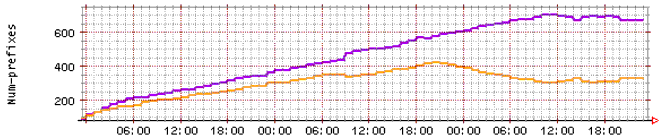
The chart was configured to show data for three days beginning with a reboot of the device.
The dark line (purple) charts the number of prefixes in the group for which the CNA choice is the confirmed path.
The light line (orange) charts the number of prefixes in the group for which the BGP selection has been determined by the CNA system to be the winning path.
The Link type of graph will show statistical performance data about a specific service-provider link. The number of datapoints available for plotting graphs varies.
Some datatypes are in the event manager trend family, others are in the performance family.
You can configure this chart to show any of the following kinds of data:
- Average HRTT--graph charts a rolling average of HRTTs for all prefixes on the link (performance family; data obtained at frequency set by the trending frequency (discontinued) command)
- Average HRTT - Weighted--graph charts a rolling average of HRTTs for all prefixes on the link when HRTT values are weighted by measurement rates in order to estimate actual load on the link (performance family; data obtained at frequency set by the trending frequency (discontinued) command)
- CNA Winners Count--graph will chart the total number of routes on this link that were asserted by the CNA system (performance family; data obtained at the frequency specified by the trending frequency (discontinued) command)
- CNA Winners %--graph will chart the percentage of routes on this link that were asserted by the CNA system (performance family; data obtained at the frequency specified by the trending frequency (discontinued) command)
- BGP Winners Count--graph will plot the number of prefixes for which the CNA choices and BGP choices are in agreement for all controlled routers (performance family; data obtained at the frequency specified by the trending frequency (discontinued) command)
- BGP Winners Percent--graph will plot the percentage of prefixes for which the CNA choices and BGP choices are in agreement for all controlled routers (performance family; data obtained at the frequency specified by the trending frequency (discontinued) command)
- Outaged Prefixes--graphs the number of prefixes for which the CNA decision-maker process considers the link to be experiencing outages
- CNA Routes - Moved From Link--graphs the percentage of all asserted moved-from prefixes on this link (percentage of the sum of all asserted prefixes counted as having been moved off a link)
- CNA Routes - Moved To Link--graphs the percentage of all asserted moved-to prefixes on this link (percentage of the sum of all asserted prefixes counted as having been moved to a link)
- Routes - % Moved From Link--graph will chart the total number of routes that would be moved off the link if the all of the CNA selected routes were out of the queue and confirmed by the router (performance family; data obtained at the frequency specified by the trending frequency (discontinued) command)
- Routes - % Moved To Link--graph will chart the total number of routes that would be moved on to the link if the all of the CNA selected routes were out of the queue and confirmed by the router (performance family; data obtained at the frequency specified by the trending frequency (discontinued) command)
- Measurement Rate--graphs the total number of measurements, web and probe, recorded by this link’s USTAT per second, minus losses due to congestion in the internal CNA decision-making process (performance family; data obtained from the hourly snapshot database)
- Link Status--graph line is plotted as a boolean value showing status of the link based on BGP status and link status reported by SNMP polling; if both link status and BGP status are up, the Link Status datapoint will show the link to be up, not zero (event manager family; data obtained at 30-second fixed intervals, written to the database every five minutes)
- Link Status - Peering--results of the poll of the edge router’s SNMP agent for BGP status; SNMP polling for BGP status must be enabled (event manager family; data obtained at 30-second fixed intervals, written to the database every five minutes)
- Link Status - SNMP Polling--results of the poll of the edge router’s SNMP agent for link status; SNMP polling for link status must be enabled; see Chapter 4: Polling Routers of the CNA Advanced Monitoring Guide (event manager family; data obtained at 30-second fixed intervals, written to the database every five minutes)
The Medic type of graph will chart resource utilization and connectivity state for the selected module. When you select a graph type from the Data menu, the list displayed in the Select Module window will present only those modules for which the selected graph can be drawn.
The Data menu contains the following selections:
- CPU Usage--all modules; graph charts percentage of CPU in use (event manager family; data obtained at 30-second intervals, written to the database every five minutes)
- eth0--all modules; graph plots a boolean value showing whether the device driver of the module’s eth0 interface is functioning correctly (event manager family; data obtained at 30-second intervals, written to the database every five minutes)
- Flash Memory Usage--all modules; graph charts percentage of module’s flash memory currently being used (event manager family; data obtained at 30-second intervals, written to the database every five minutes)
- Hard Disk Usage--management module only (event manager family; data obtained at 30-second intervals, written to the database every five minutes)
- Process Memory Usage--all modules; graph charts percentage of module’s RAM currently being used (event manager family; data obtained at 30-second intervals, written to the database every five minutes)
- IPC--all modules except management; graph plots a boolean value showing whether the selected module is able to communicate with the management module using the CNA system’s Inter-Process Communication channel; graph is meaningless if management module is selected (event manager family; data obtained at 30-second intervals, written to the database every five minutes)
- ping--all modules except management; graph plots a boolean value showing whether the selected module is able to respond to a ping contact from the management module; graph is meaningless if management module is selected (event manager family; data obtained at 30-second intervals, written to the database every five minutes)
- Ramdisk Memory Usage--all modules; graph charts percentage of module’s ram disk currently being used (event manager family; data obtained at 30-second intervals, written to the database every five minutes)
- Temperature--all modules; graph plots the temperature of the selected module’s CPU-1 (event manager family; data obtained at 30-second intervals, written to the database every five minutes)
- Voltage--all modules; graph plots a boolean value representing all voltages on the module, which are either all within range or one or more of them is out of range; check the CNA log to find out which voltage is out of range (event manager family; data obtained at 30-second intervals, written to the database every five minutes)
The PathControl type of graph provides information about device activity for all prefixes over all links and routers.
Datapoints are obtained at the frequency set by the trending frequency (discontinued) command.
The Data menu contains six items, Summary, Web Speedup, Web Speedup BGP, Weighted Web Speedup, Weighted Web Speedup BGP, and Details. The PathControl graph options are:
- Summary (number of samples determined by performance manager trend-size family)
- % Improvable--graph shows the percentage of all prefixes for which performance could be improved by implementing the CNA-selected route
- % Improvable against Worst--graph shows the percentage of all prefixes for which performance could be improved by implementing the CNA-selected route compared with the worst link
- % Improvement - Improvable against Worst--graph plots the percentage of improvement achieved by implementing the CNA choice, among all routes determined to be improvable by the CNA decision maker process, compared against the worst link
- % Improvement - Overall--graph plots the percentage of improvement achieved by implementing the CNA choice, over all prefixes (whether improvable or not)
- Adequate Prefixes--graph plots the number of adequately measured prefixes in the CNA database (adequately measured means the database contains a sufficient number of measurements as defined in the CNA configuration by the min-required-measurements command)
- Average HRTT - BGP--graph plots the rolling average HRTT for all prefixes across BGP-selected routes
- Average HRTT - Max--graph plots the average of the maximum HRTT across all links per prefix
- Average HRTT - CNA Winners--graph plots the rolling average HRTT for all prefixes across routes that have been asserted as the preferred route by the CNA decision-maker process
- Average HRTT - Weighted - BGP--graph plots the rolling average HRTT for all prefixes across BGP-selected routes, when HRTT values are weighted with measurement rate to simulate traffic load
- Average HRTT - Weighted - CNA Winners--graph plots the rolling average HRTT for all prefixes across routes that have been asserted as the preferred route by the CNA decision-maker process, when HRTT values are weighted with measurement rate to simulate traffic load
- Average mSecs Saved--graph plots the rolling average of HRTT savings (in milliseconds) achieved because of CNA route assertions
- Improvable Average HRTT - BGP--graph plots the rolling average HRTT for all prefixes that could be improved by an CNA route assertion, across BGP-selected routes
- Improvable Average HRTT - CNA Winners--graph plots the rolling average HRTT for all prefixes that could be improved by an CNA route assertion, across routes selected as the preferred route by the CNA decision maker process
- Improvable Average mSecs Saved--graph plots the rolling average of HRTT savings (in milliseconds) realized by all prefixes that were improved by an CNA route assertion
- Improvable Prefixes--graph plots the number of prefixes for which an CNA route assertion is an improvement over the natural BGP selected route
- Web Speedup (number of samples determined by performance size family, data is gathered from the hourly snapshot database; for explanations of All, Blackout, Poor and Very Poor groups, see the description of the Web Speedup Trend Templates)
- % improvable--shows a rolling average percentage of the number of prefixes that can be improved by an CNA route assertion compared to the natural BGP selection
- % improvement--shows a rolling average percentage of improvement achieved by CNA route assertions compared to the natural BGP selections, over the total number of prefixes
- Max. Secs saved--shows a rolling average of the top end of the range of estimated seconds saved per downloaded HTML page by an CNA-asserted route compared to a BGP selected route
- Min. Secs saved--shows a rolling average of the bottom end of the range of estimated seconds saved (estimates are based on user-defined criteria; see the web-speedup http-turns command)
- Num. Prefixes--shows a rolling average of the total number of prefixes used to calculate the Web Speedup figures
- Web Speedup - BGP offers the same information as Web Speedup except that data is compared against BGP
- Weighted Web Speedup offers the same information as Web Spedup except that data is weighted to show impact on traffic, rather than raw prefix count
- Weighted Web Speedup - BGP offers the same information as Weighted Web Speedup except that data is compared against BGP
- Details (number of samples determined event manager trend-size family)
- Routes Asserted Rate--graph plots the total number of routes that have been asserted or (as when the BGP selection is judged to be the best performance route) left in place by the CNA system
- Routes Confirmed Rate--graph plots the total number of routes that have been asserted by the CNA system and confirmed as in use by the routers
- Routes Selected Rate--graph plots the total number of routes that the CNA decision-maker process has determined to be the preferred route
The Prefix type of graph will show data about a specific prefix.
Data is obtained from the hourly snapshot, except for those prefixes you have added to the trend-live group. Data for those prefixes is sampled every 30 seconds (and written to the database every five minutes). See the report group command for more information about the trend-live group.
The number of datapoints available for Prefix type graphs is determined by the performance family of trend sizes.
You can graph any of the following kinds of data:
- CNA Winner HRTT--graph plots a rolling average HRTT for the link asserted by the CNA system for the prefix
- Times Faster vs. Worst--graphs the ratio of the of the CNA Winner handshake round trip time (HRTT) to the worst link’s HRTT.
The Prefix-Link type of graph shows information about a specified link’s performance in transmitting packets to a specified prefix.
Data is obtained at the same rates, and stored in the same size trending files, as described for the Prefix type trend report.
You can configure this chart to show any of the following kinds of data for an individual prefix:
- Quality Metric--graph shows the CNA-calculated quality metric for this link and prefix at a given moment. This metric is an index, ranging from 0 (best) to 1000 (worst) that shows the quality of the link and is indicative of the user experience.
- Decision Metric--graph shows the CNA-calculated decision metric for this link and prefix at a given moment. It is similar to the quality metric except that it is used by the decision-maker process in its decisions.
- Measurement Rate--graphs measurements per second for this prefix across all links (if the measurement rate is slow, the actual Y-axis scale may be in fractions; that is, the scale could show numbers such as 15 m, for “milli-hits,” which can be read as 15 hits per 1,000 seconds, or about 1 per minute)
- Reliability--graphs the average time, in minutes, spent by that the link in the winner set.
- HRTT--graph shows the actual HRTT value for each moment of time
- Rtt--graphs the average Round Trip Time (RTT), in milliseconds, for the specified prefix. RTT is available only for prefixes receiving measurements from ICMP or traceprobe active-probing.
- Jitter--graphs the average jitter in milliseconds for the specified prefix. Jitter is calculated as the difference between consecutive round trip time (RTT) values. Jitter is available only for prefixes receiving measurements from ICMP or traceprobe active-probing.
- Loss--graphs the average loss for a given link associated with the specified prefix. These values are available only for prefixes receiving measurements from ICMP or traceprobe active-probing.
- Application Delay--graphs the computed application delay, in milliseconds, at each moment in time. The values are an estimate of the delay that would be experienced by an application, given the raw measurements observed for the prefix.
- Is BGP Winner--the graph will show when this link is the BGP winner for the specified prefix
- Is Current Winner--the graph will show whether the link has been asserted and confirmed as the best path for the specified prefix
- Is Pending Winner--the graph will show whether the link represents the CNA system’s selection (though may not yet be confirmed by the router as in use) as the best path for the specified prefix
- Is Outage--the graph will show periods of outage for the prefix on the link
NOTE: The list of prefixes displayed in the Select Prefix window for the Prefix and Prefix-Link types represents all prefixes that have been given a CNA system alias or been added to a CNA report group, or have ever been included in the most-active list for any snapshot period.
You may find prefixes on this list for which no data shows up in the generated charts.
This can happen if, for example, a prefix is included in the most-active group for a single snapshot period and then drops out because of inactivity. Because of the way the trending process uses average data for missing datapoints, the single entry in the database can quickly become diluted and the charts for that prefix will appear empty.
Use the trending clear-after (deprecated) CLI command to automatically prune these prefixes from the trending database.
You can also create a report group for those prefixes in which you are interested. Prefixes that are in a group will always be trended, so there will be no gaps in the data for them.
The Router type of graph will show BGP rate to/from a specific router. You can choose to graph the following:
- BGP Announcement--graphs the number of BGP announcements made to the router during the data-collection interval
- BGP Withdrawal--graphs the number of BGP withdrawals during the data-collection interval

